A-Cube Transfer for Italy
A-Cube Transfer sends the files your ERP already exports. It converts them to FatturaPA when needed and delivers them through A-Cube's e-invoicing service for Italy. Upload through SFTP without writing an invoicing integration, or use the file upload API from your application.
For onboarding, uploads, tracking and receiving, see the complete Transfer documentation. This page covers the formats, connection details and outcomes for Italy.
Before your first upload, A-Cube activates your account and agrees the file format with you. You can use the standard layout or have A-Cube build a conversion for your CSV, JSON or XML export.
In Italy, an electronic invoice is an XML file in FatturaPA, the format defined by the Italian Tax Authority (Agenzia delle Entrate). It goes through SdI (Sistema di Interscambio), the Tax Authority's system that checks each invoice and delivers it to your customer.
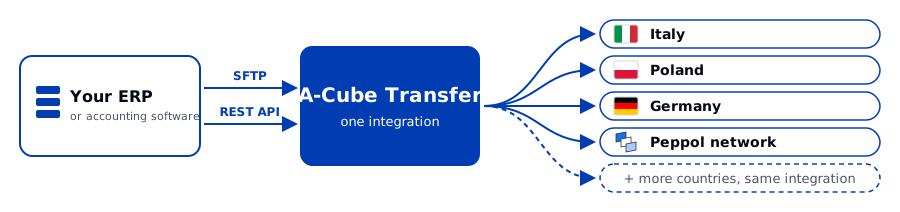
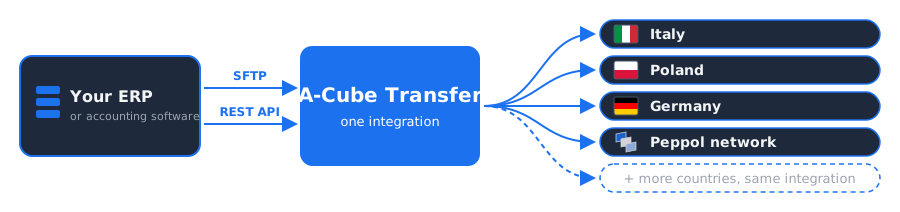
How it works
- Your ERP exports the documents as files, for example a CSV spreadsheet or FatturaPA XML.
- You upload the files to the SFTP folder A-Cube provides. Your application can also upload a file with an HTTP call to the file upload API, after A-Cube confirms access for your destination.
- A-Cube reads each file and, if it is not FatturaPA yet, converts it. A CSV file can contain several documents: each one becomes a separate electronic document.
- A-Cube delivers each document through its e-invoicing service for Italy.
- You check processing and delivery separately. The tracking API reports file processing and gives you each document's identifier. Use that identifier in the invoicing API to check the later delivery outcome.
When to use it
| Use | When |
|---|---|
| A-Cube Transfer | Your system can export invoice information, and you want to send it as it is, without writing code that builds each document. |
| Invoices API | Your application creates each document in FatturaPA and sends it to A-Cube with an API call. |
Availability describes how A-Cube sets up each capability:
- Available: ask A-Cube and it is enabled for you, with no development.
- Custom: A-Cube builds it for you, for example the conversion of your own CSV layout.
Get started
- Contact A-Cube with your destination, a sample export with test data, and your preferred channel (SFTP or file upload API). Request sandbox access to try the integration.
- A-Cube confirms your format, credentials, connection details and where to read the delivery outcome. See Onboarding and access.
- Upload a first file with the Quickstart SFTP. Use the sample and sandbox username for your destination.
The shared guides cover SFTP uploads, file upload API requests, processing statuses and errors and corrections.
Formats for Italy
| File | What A-Cube does | Availability |
|---|---|---|
| CSV in the A-Cube standard layout: one row for each invoice line, buyer data only | Converts it to FatturaPA and calculates the VAT summary and the invoice totals. Your seller data is configured once, during onboarding. | Available |
| FatturaPA XML: invoices already in the Italian format | Sends it as it is. The file can also be digitally signed (.p7m) or several files can travel in one ZIP archive. | Available |
| UBL XML: the European standard invoice format, used for example on Peppol | Converts it to FatturaPA. | Available |
| Your own format: the CSV, JSON or XML files your ERP already produces | A-Cube configures the conversion of your layout to FatturaPA. | Custom |
With the standard CSV you can also create draft invoices, which wait in A-Cube until you send them, and attach PDF files to your invoices (SFTP only).
What you get back
| What | Where | Availability |
|---|---|---|
| The SdI outcome of every invoice, for example delivered or rejected | A-Cube dashboard and API | Available |
| Errors found in your files, such as a missing column, with the CSV row and field when applicable | A-Cube dashboard and API | Available |
| Invoices from your suppliers and SdI notifications, as files | Your SFTP folder | Available |
| Invoices from your suppliers converted to your own format | Your SFTP folder | Custom |
Connect
During onboarding, A-Cube enables your account in sandbox, a test environment where invoices do not reach SdI, in production, or in both.
| Item | Value |
|---|---|
| SFTP host | transfer.acubeapi.com, port 22, the same for sandbox and production |
| SFTP username | <your-email>--it.api.acubeapi.com, where <your-email> is the email of your A-Cube account |
| SFTP username, sandbox | <your-email>--it.api.acubeapi.com-sandbox |
| REST API base URL | https://transfer.api.acubeapi.com |
| REST API base URL, sandbox | https://transfer-sandbox.api.acubeapi.com |
| REST API | POST /upload. See Upload a file for the full request |
| Size limit | 5 MB per invoice, attachments included |
| Duplicates | A file with the same name and content as one already processed is skipped. The same name with new content is processed again. |
See SFTP and REST API for how to connect.
For a complete API example, follow CSV to SdI: prepare a standard CSV, upload it, read processing errors and follow each invoice's SdI outcome.
Contact A-Cube to activate it for your account, in sandbox, in production or in both.