Manual Authentication
This guide explains how to generate an authorization certificate in the KSeF portal and download it for the required integration with A-Cube.
Tutorial
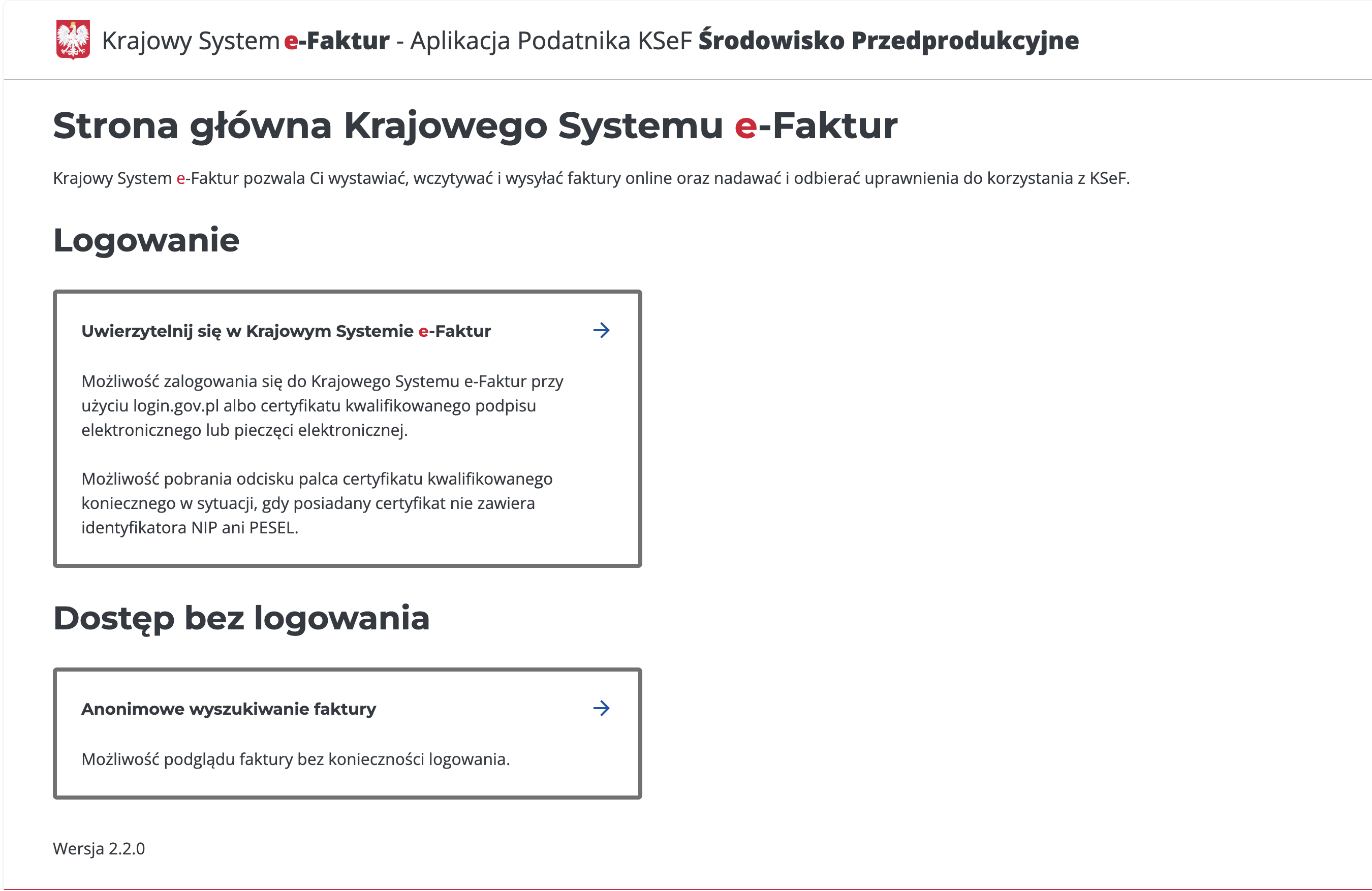
1. Open the KSeF login page.
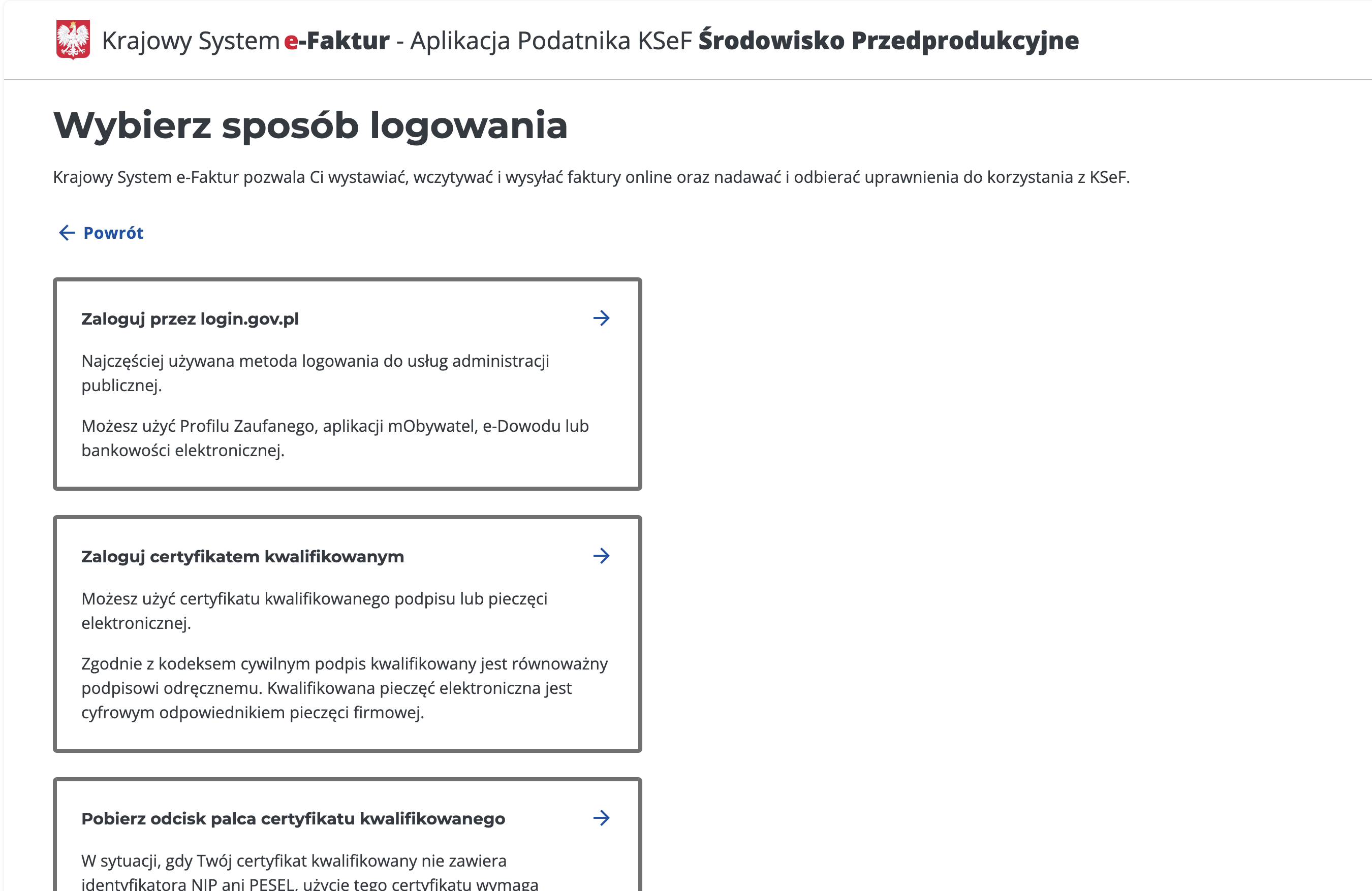
2. You will be asked to authenticate
The authentication flow will depend on the selected authentication option. In this tutorial we will focus only on login.gov.pl.
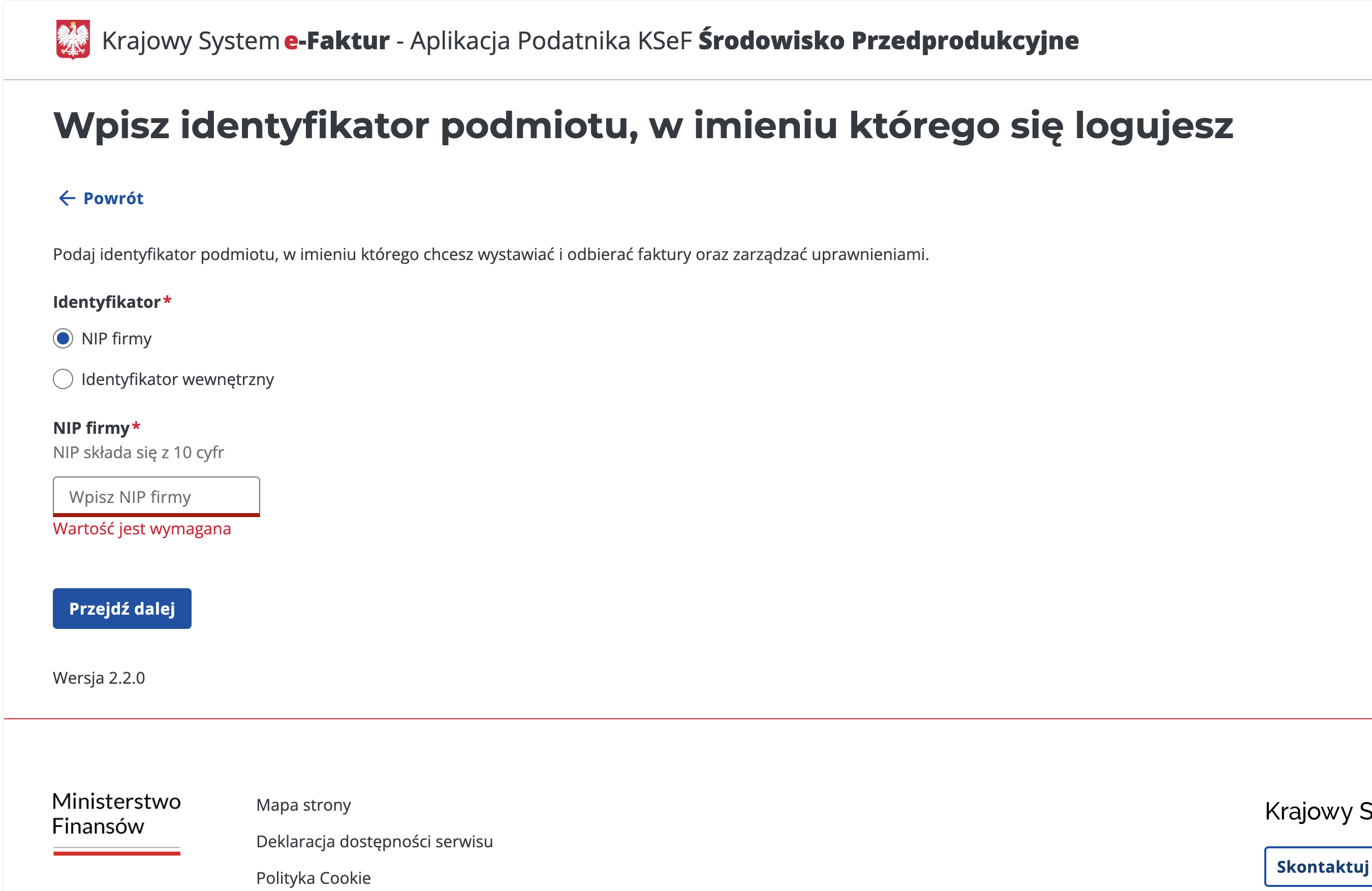
3. Enter your company’s NIP
Type exactly 10 digits, making sure not to include the PL prefix. Click on the "przejdź dalej" (Continue) button when you’re ready.
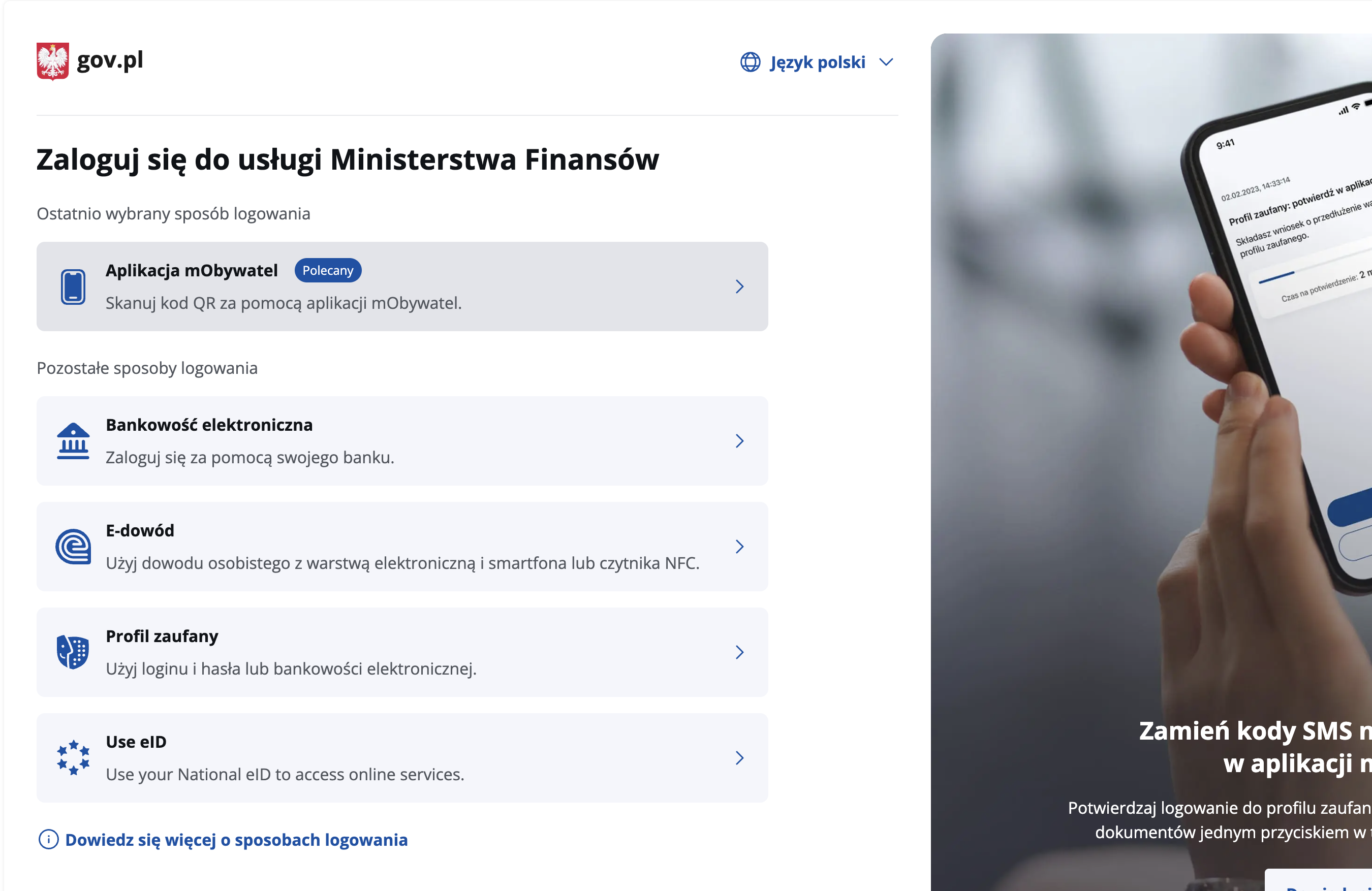
4. Choose your personal identification method and authenticate yourself.
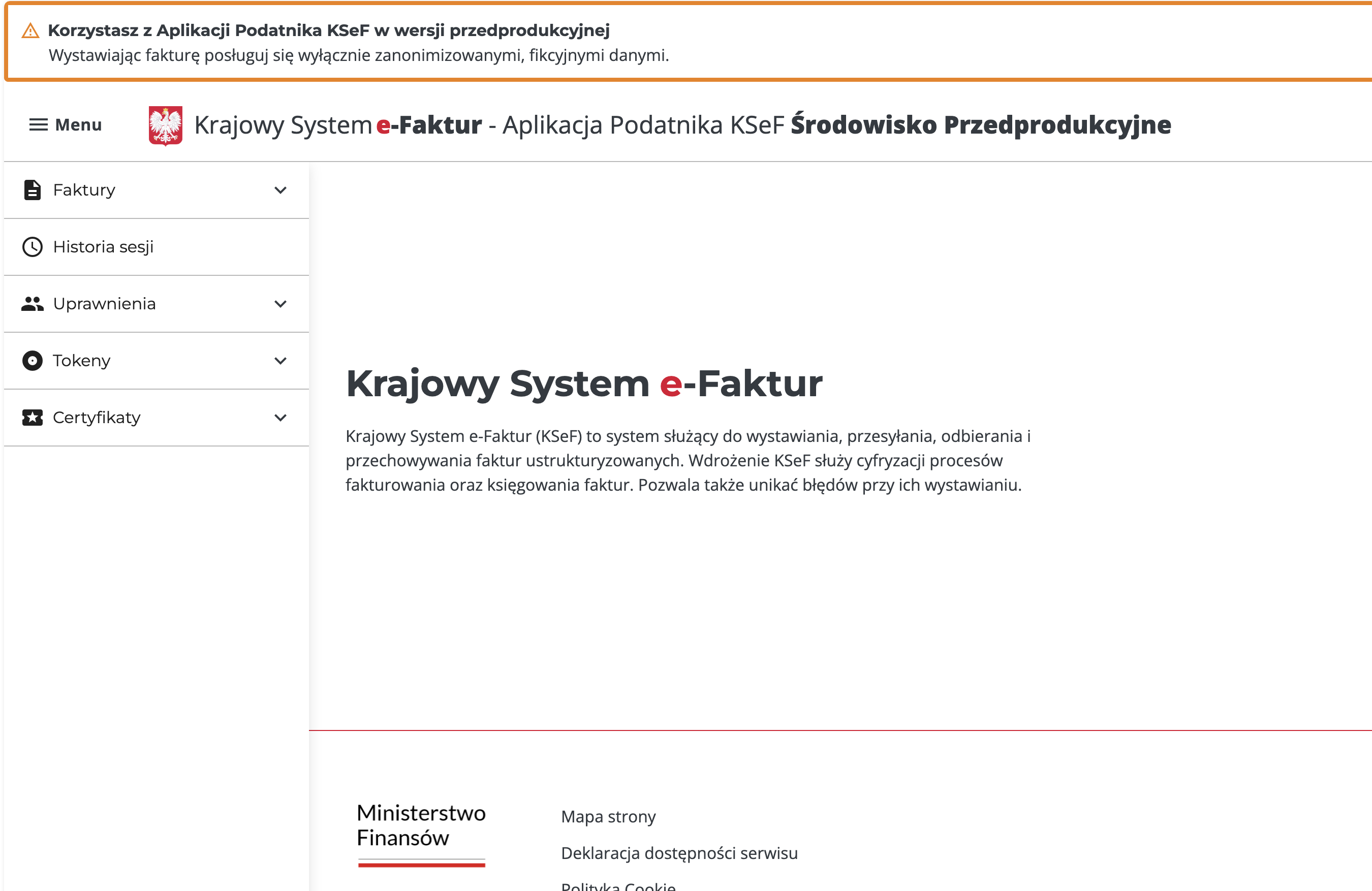
5. Once authenticated you will be redirected to the KSeF portal
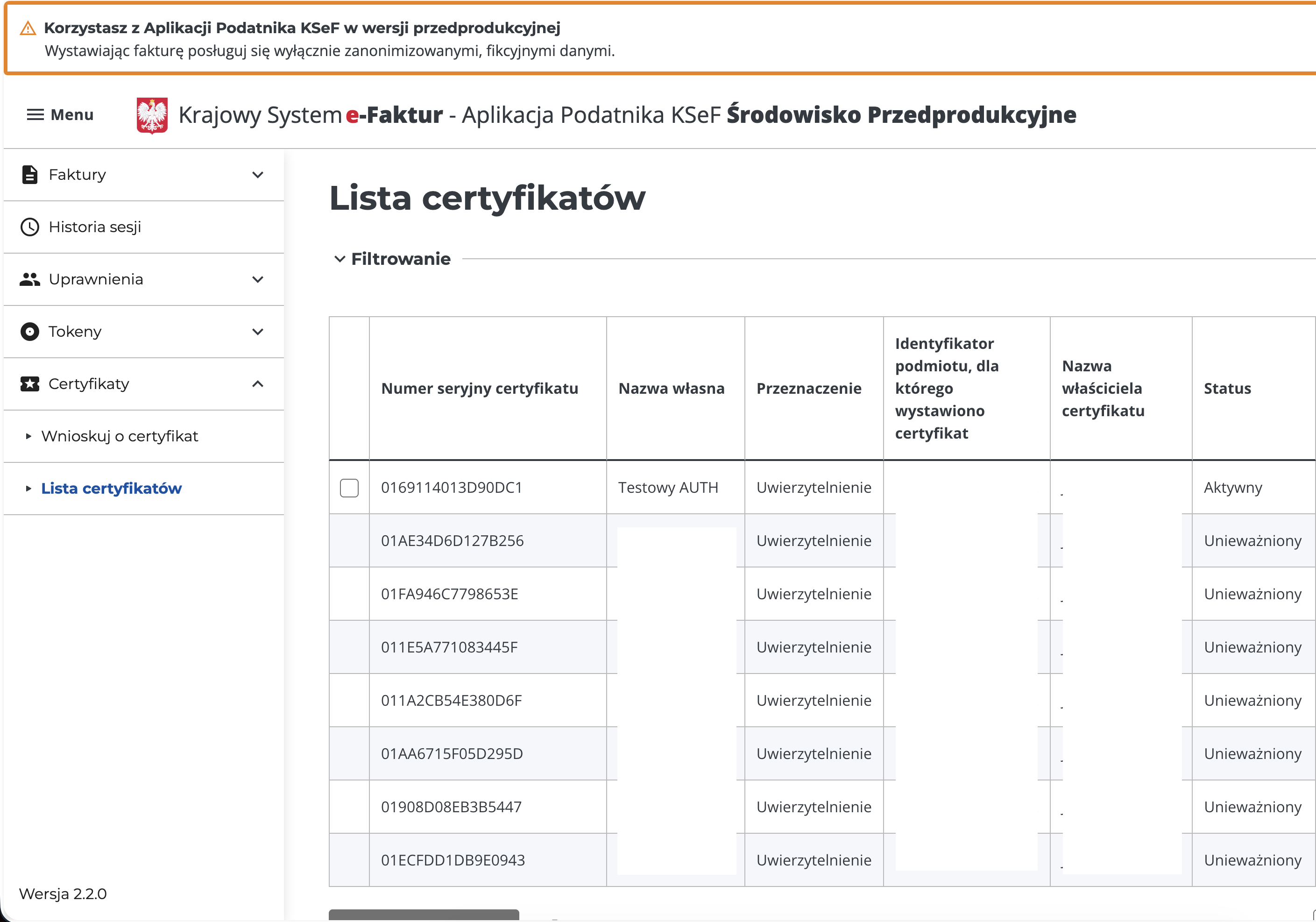
6. View your current list of certificates
Click on Lista certyfikatów (Certificates list) to see the current list of certificates associated with the legal entities you manage.
7. Click on Wnioskuj o certyfikat (Apply for a certificate)
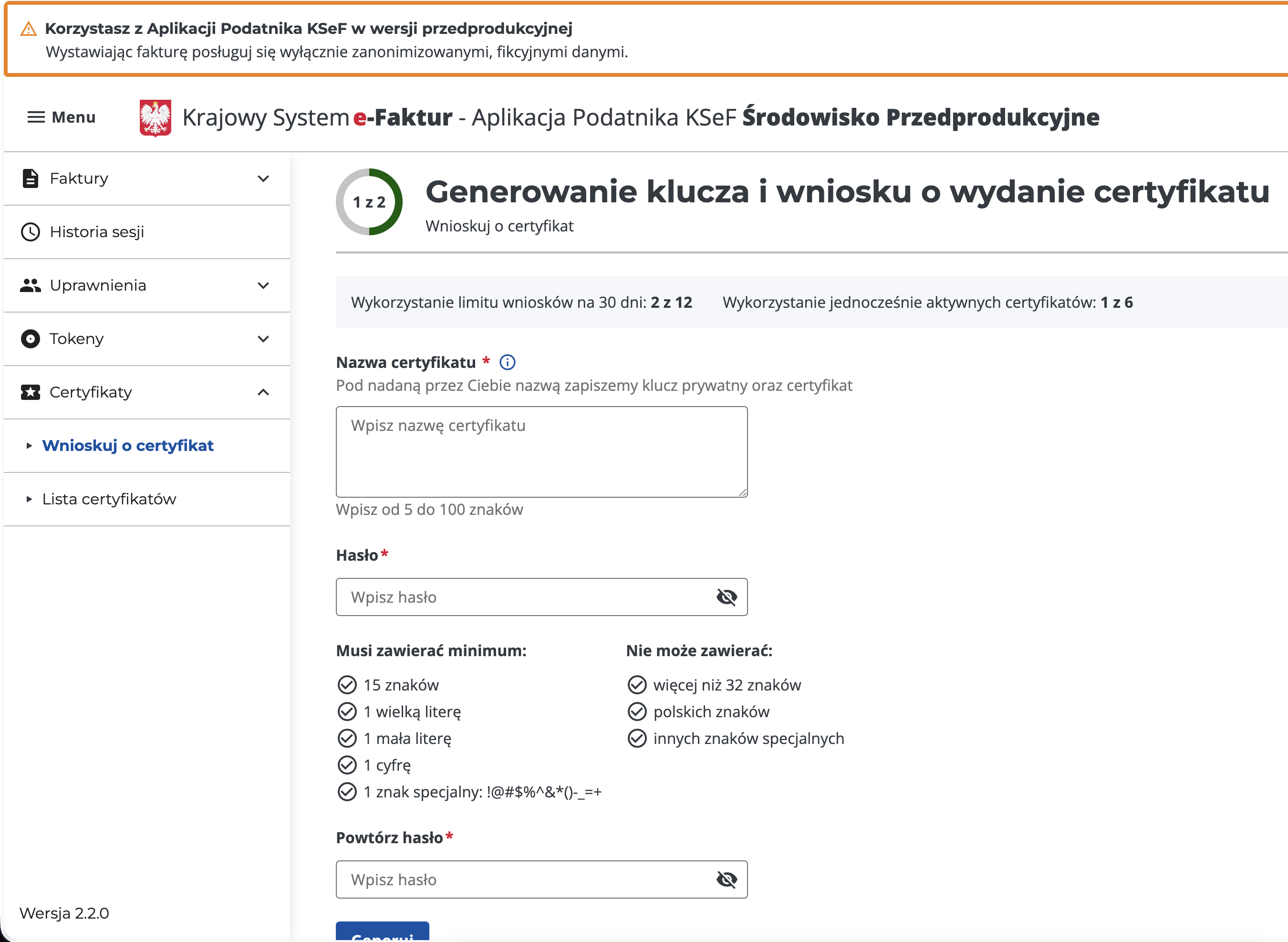
8. Fill in the required fields to generate the certificate's private key and click on Generuj (Generate)
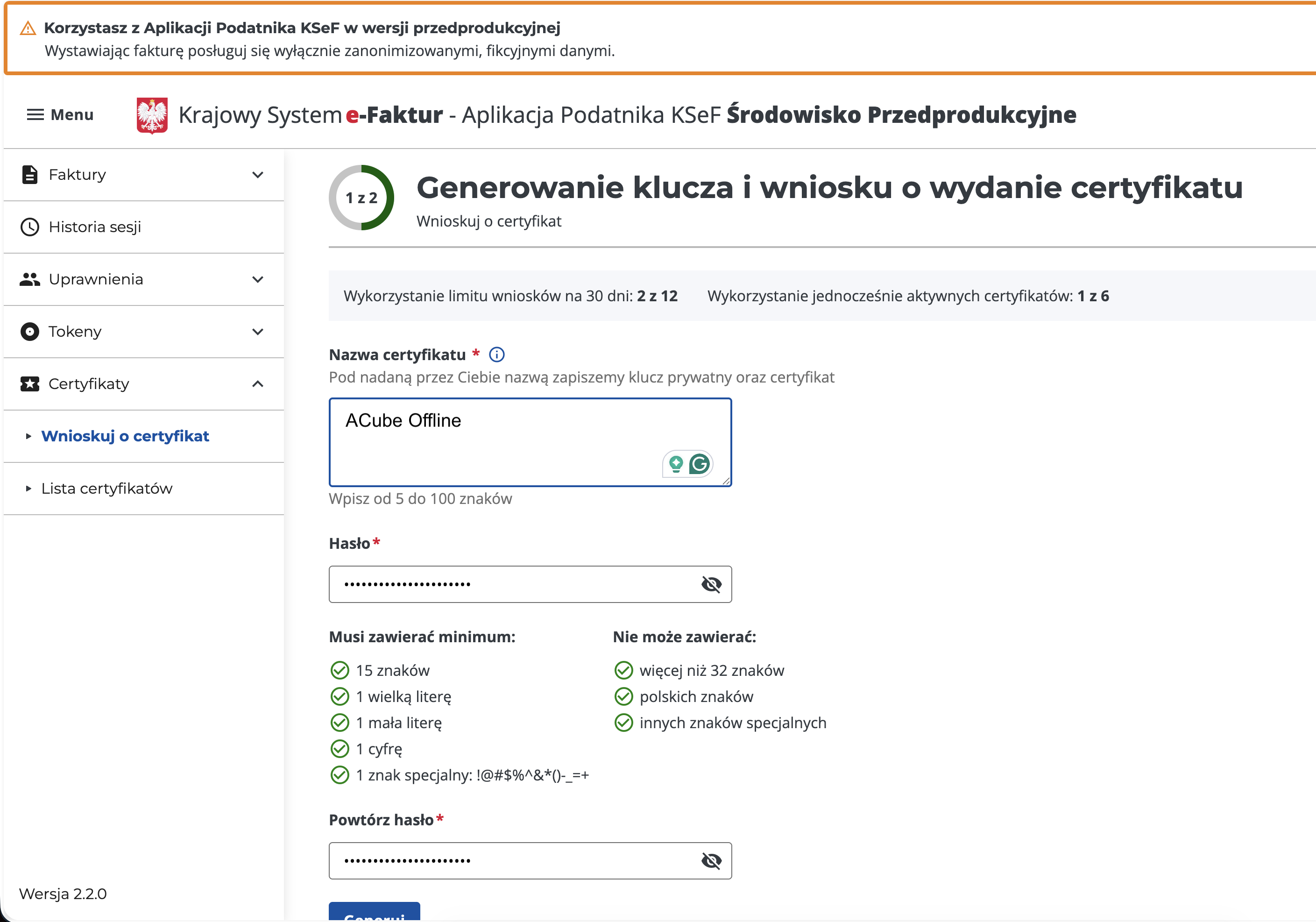
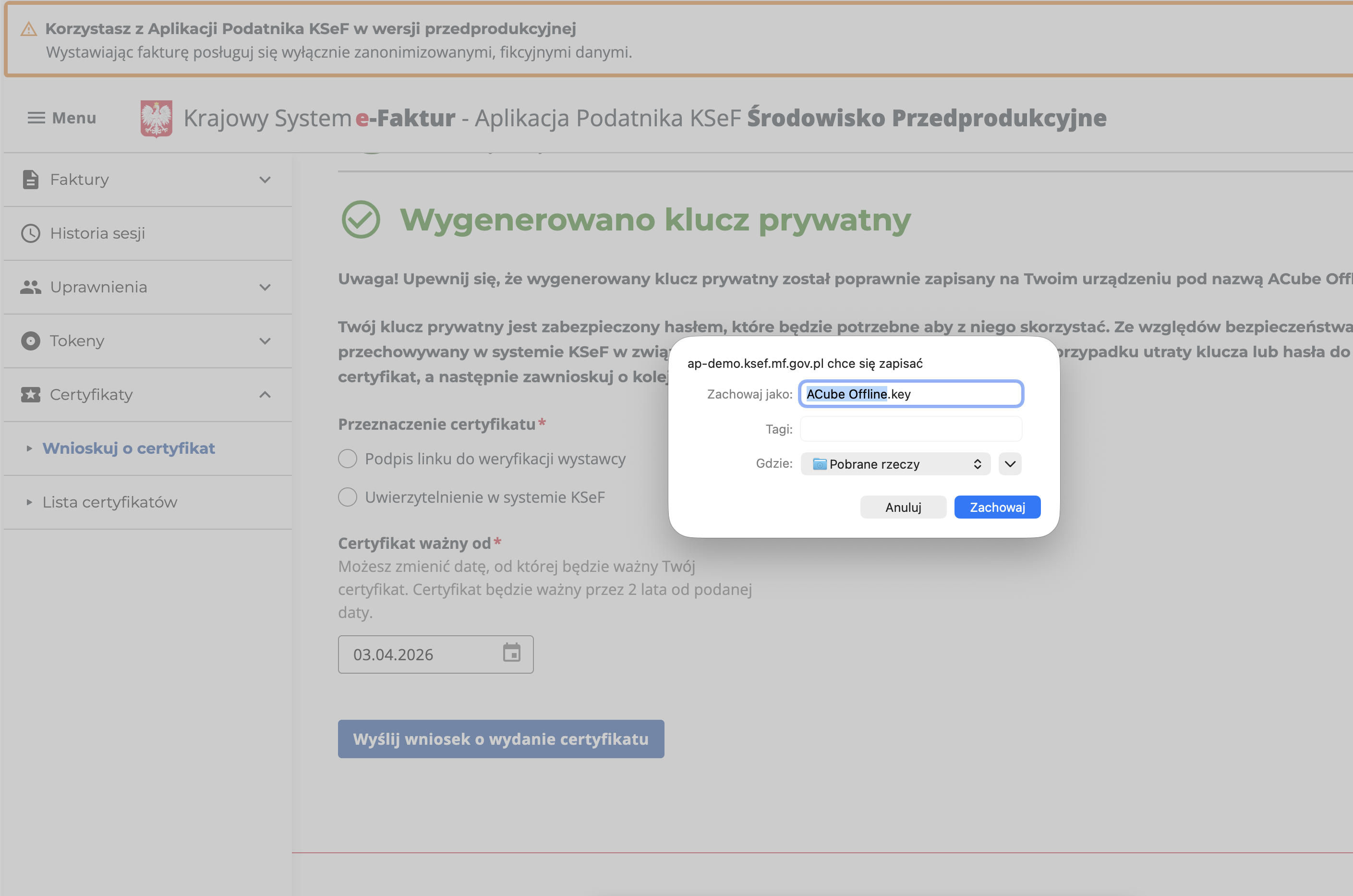
9. Save the generated private key on your local machine
warning
You won't be able to retrieve the private key again. Save it an a secure location.
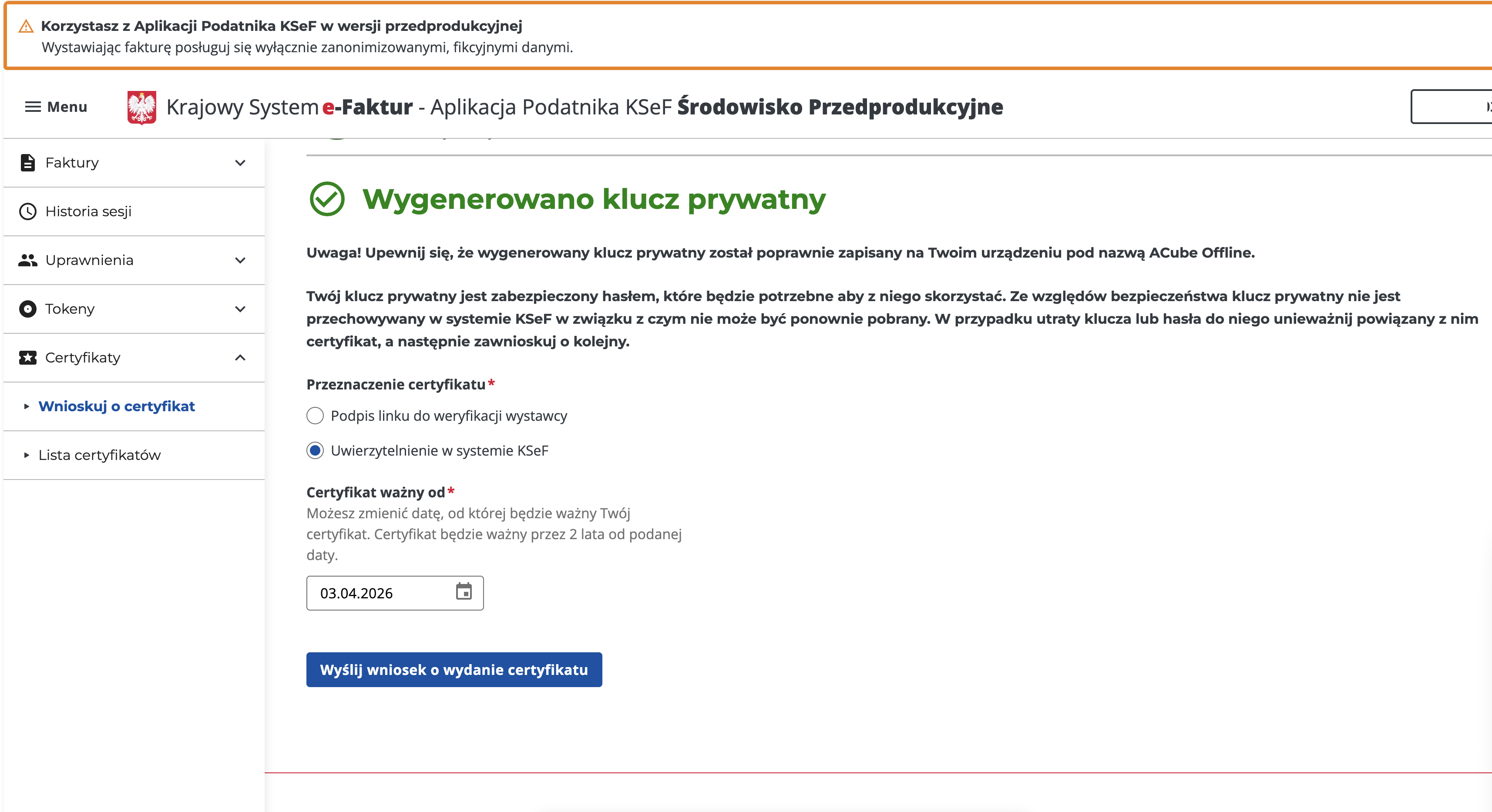
10. Select the Uwierzytelnienie w systemie KSeF (Authentication in the KSeF System) purpose and submit
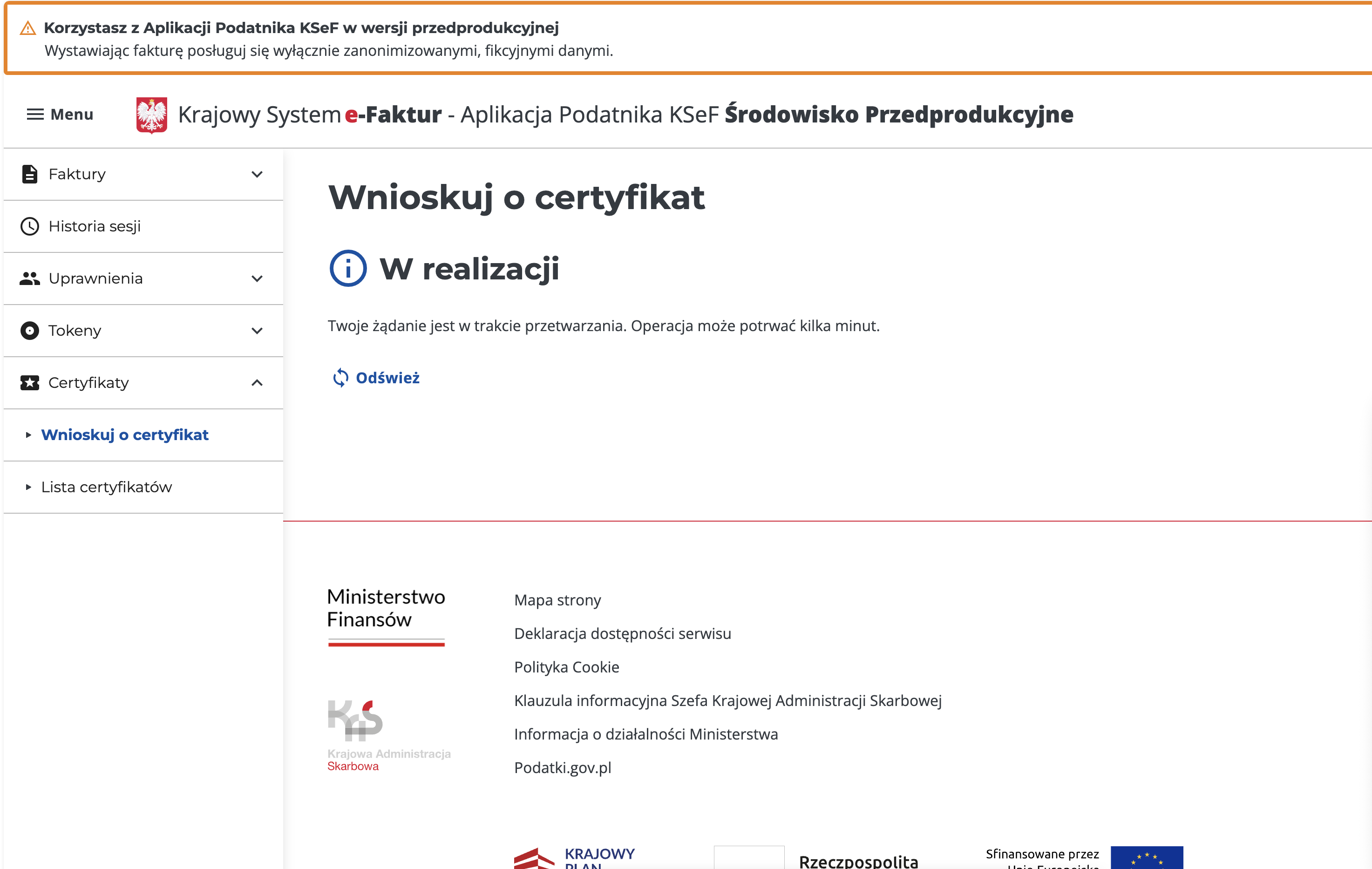
11. Wait while KSeF generates the certificate
12. Once the certificate is ready, you will be able to download the certificate's public key
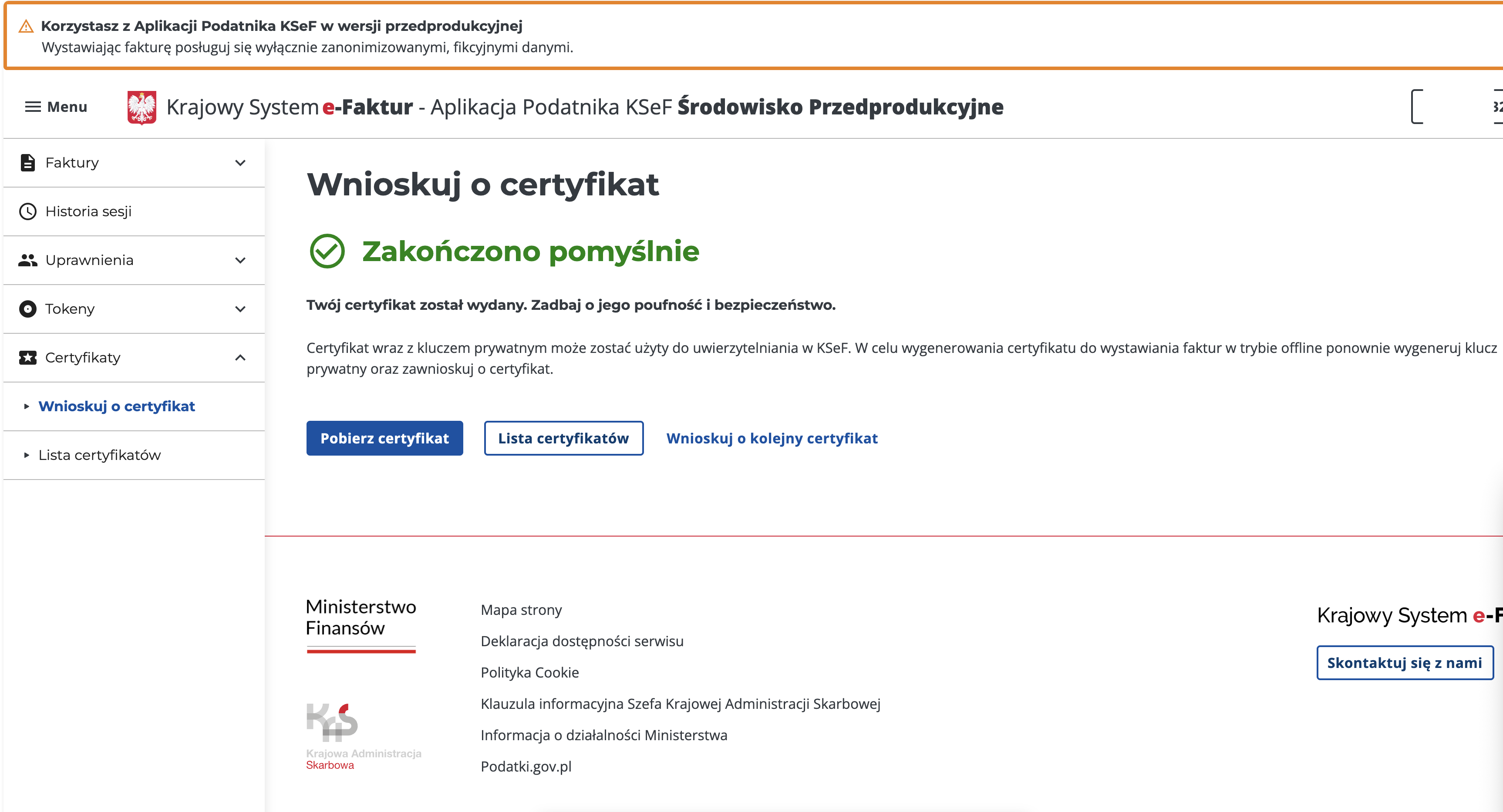
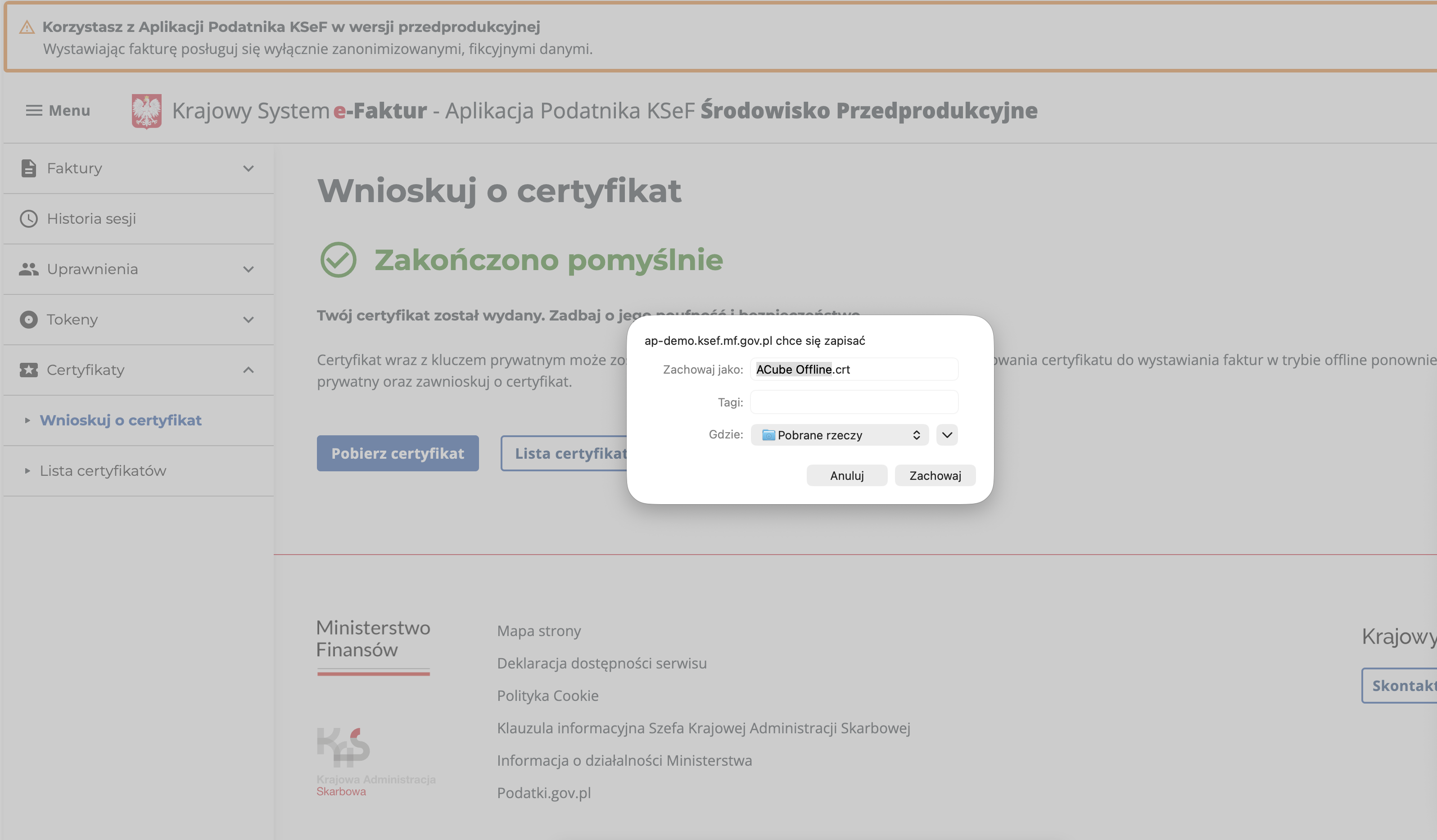
13. Save the public key in a safe location
note
Save it along with the private key generated in step 9.
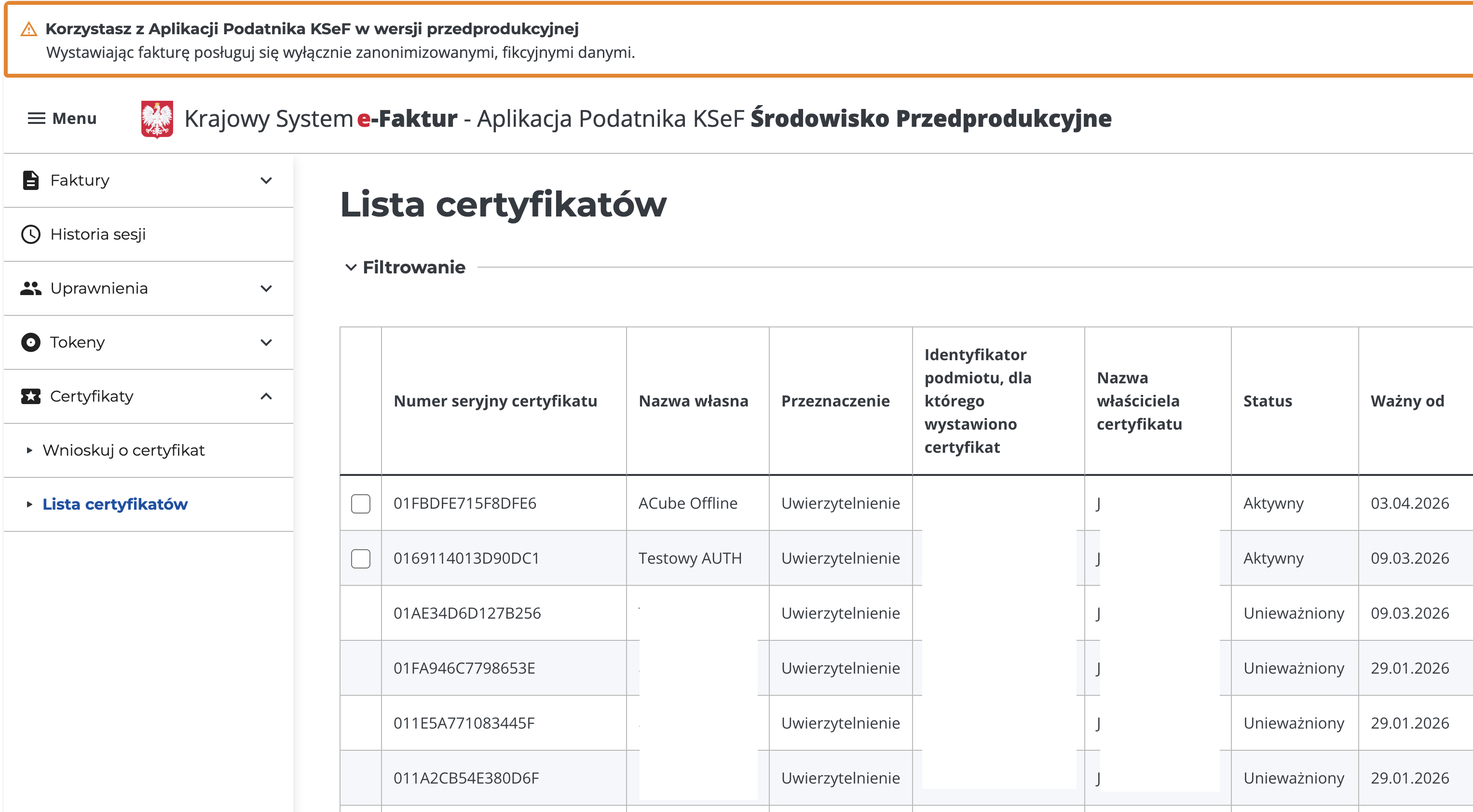
14. You can verify that the new certificate now appears in the certificate list.
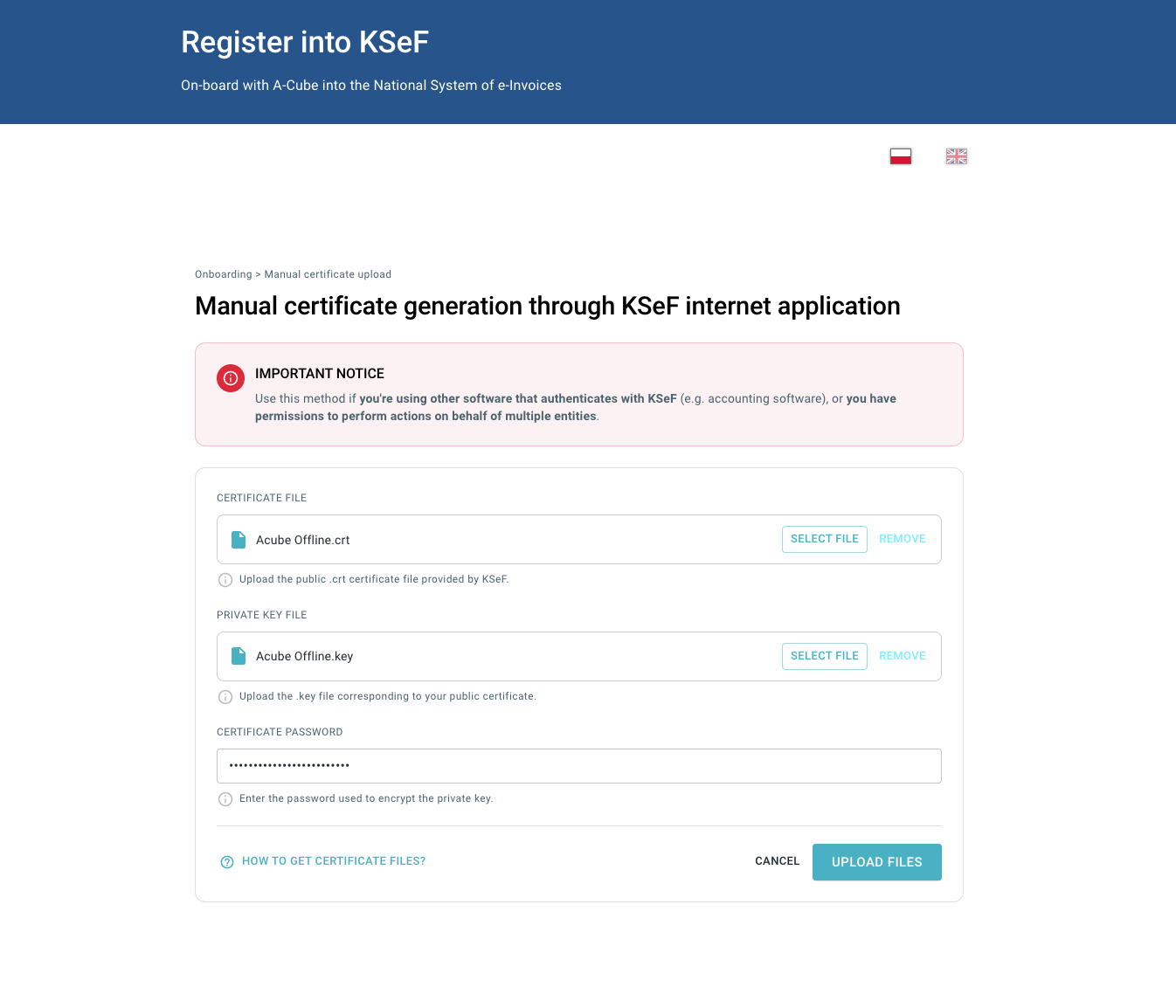
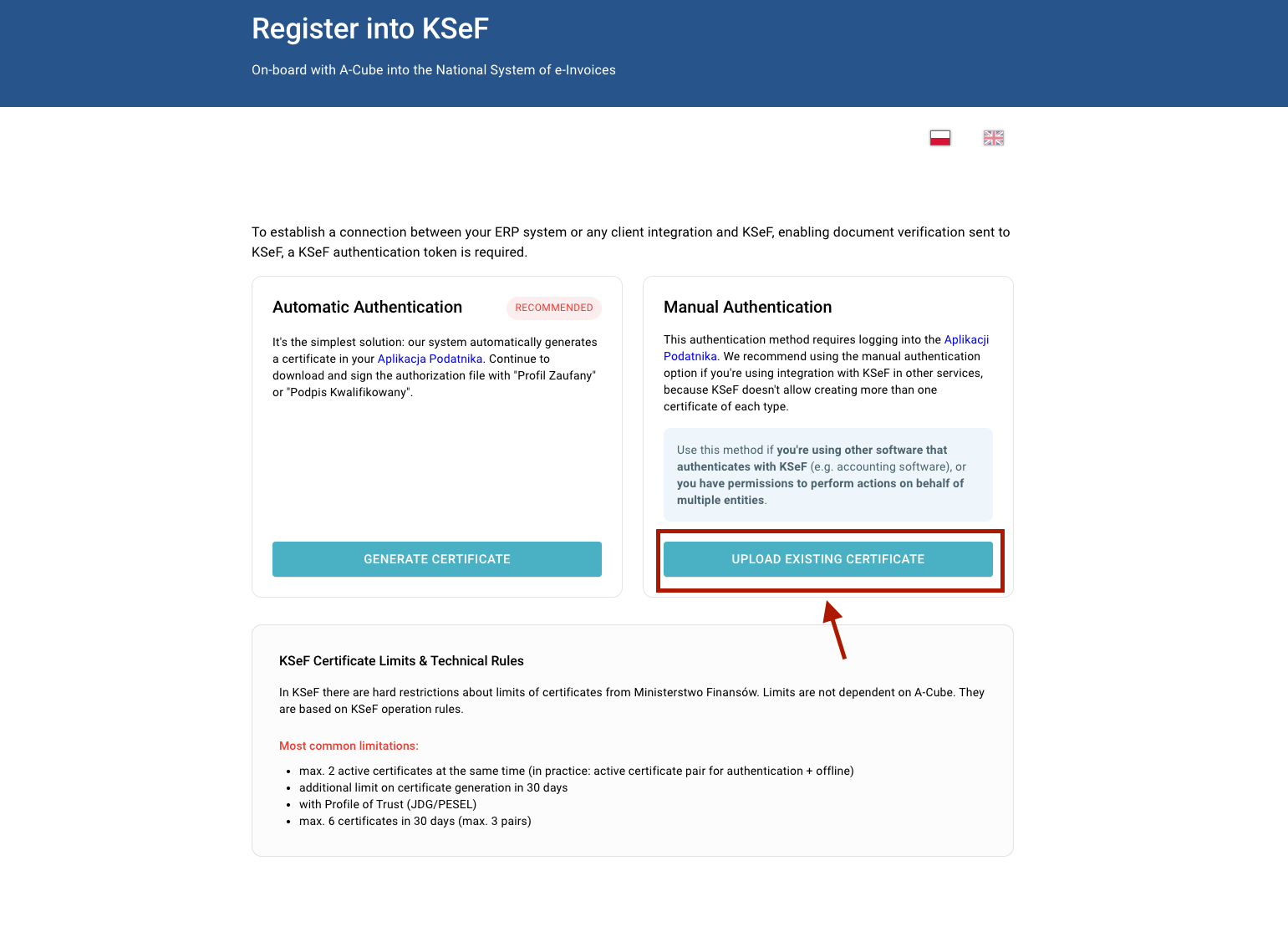
15. Go on A-Cube's onboarding page and select manual authentication
16. Fill the form with the generated files and submit