Automatic Authentication
This tutorial shows how to authenticate to KSeF using the guided automatic flow in the A-Cube dashboard.
You will:
- generate an XML file in A-Cube
- sign it using the Polish
gov.plsignature service - upload the signed file back to A-Cube
Time limit
After you start, you have about 10 minutes to finish the process (see the countdown in the top-right corner).
Tutorial
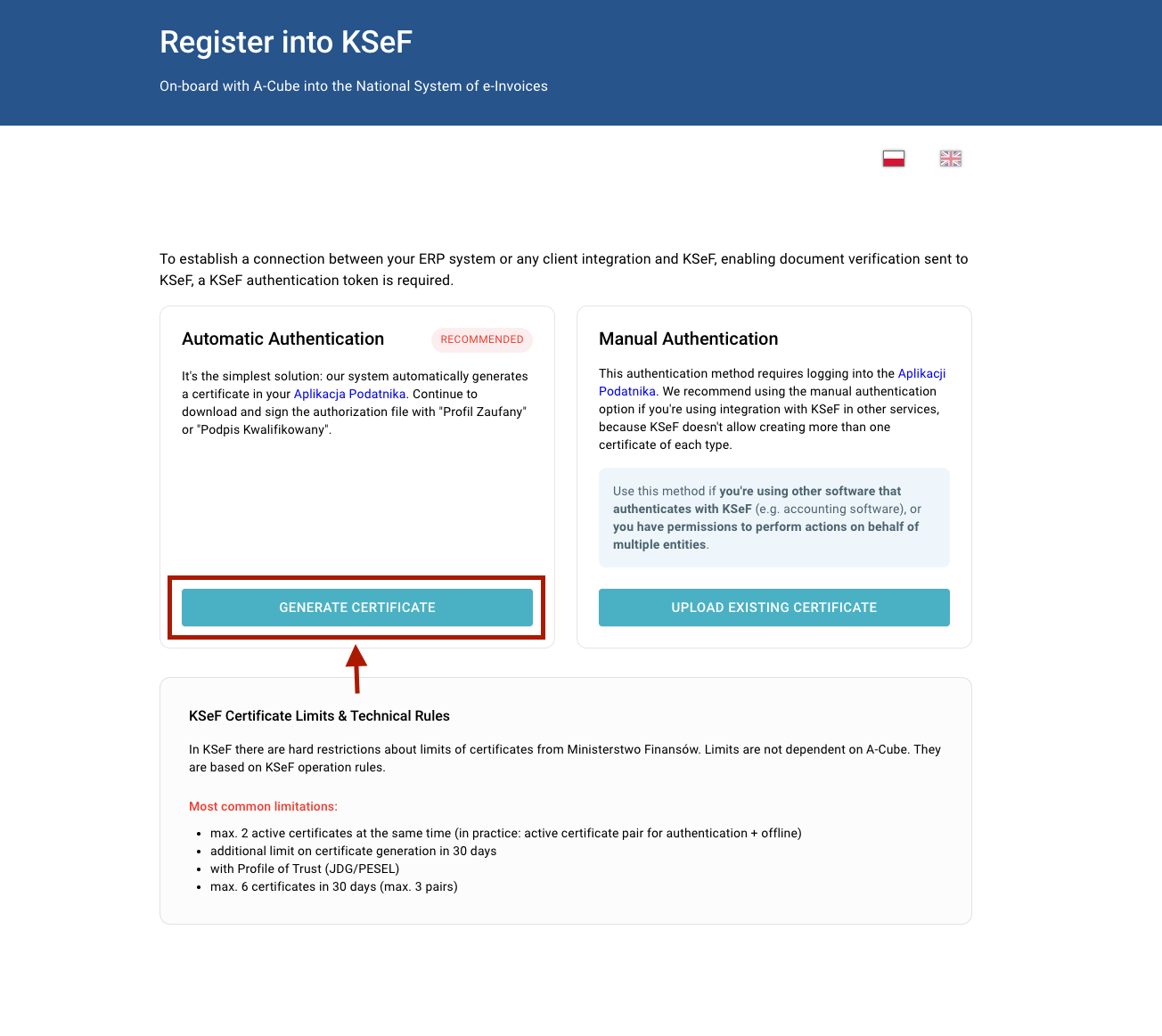
1. Open the A-Cube onboarding page and choose the automatic authentication method
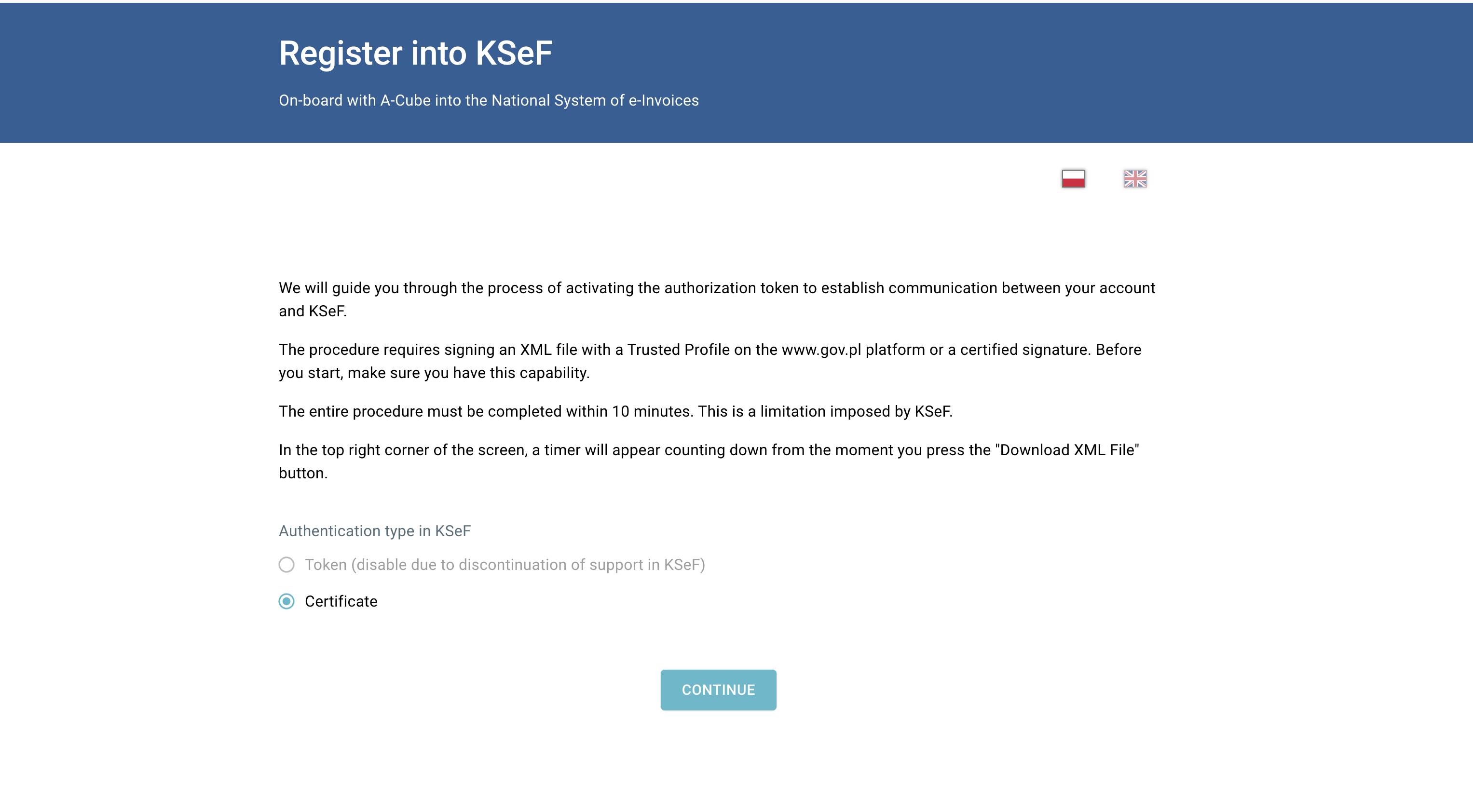
2. Select Certificate as the KSeF authentication type, then click Continue
3. Click on Download XML FILE
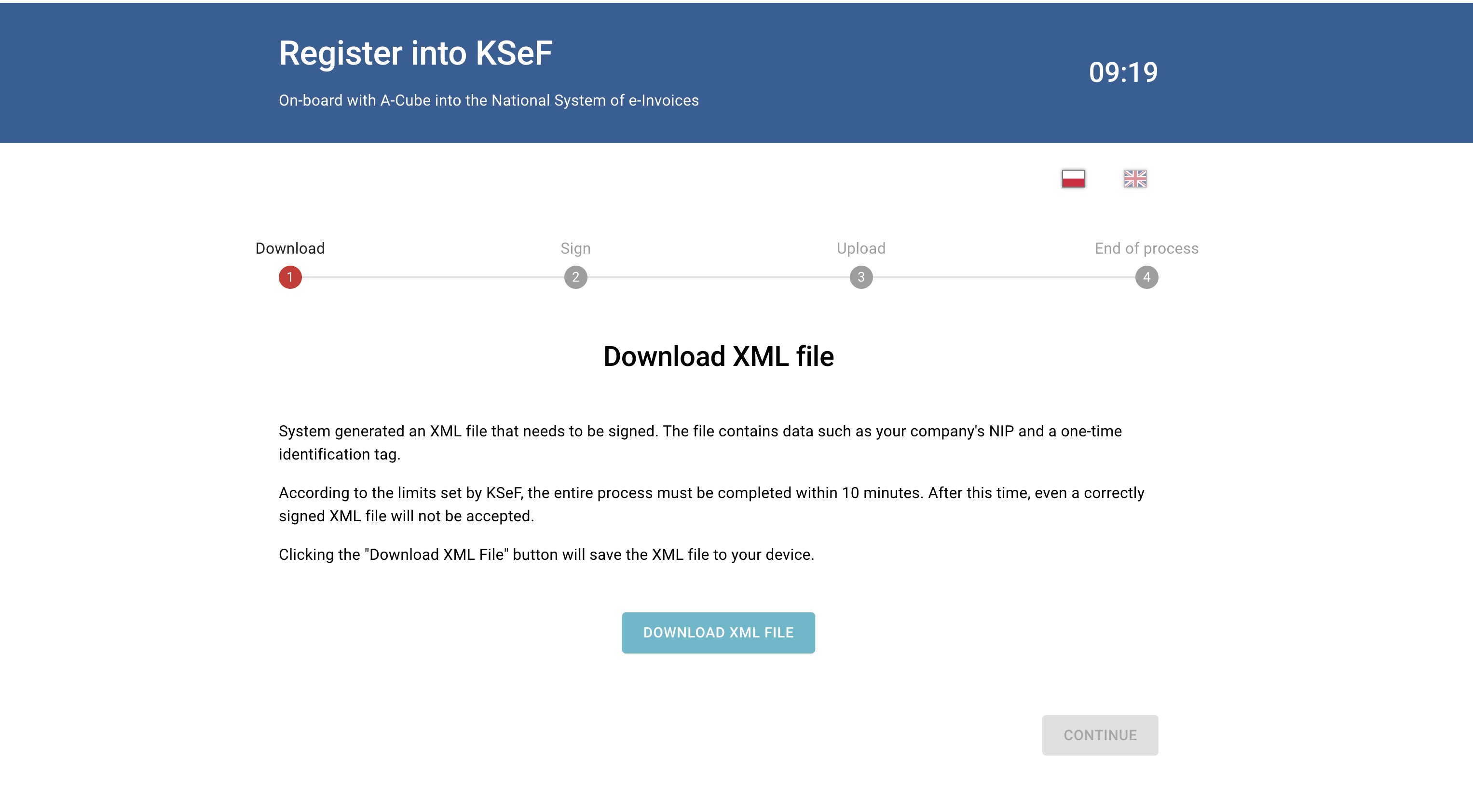
4. Save the generated file to a known local folder
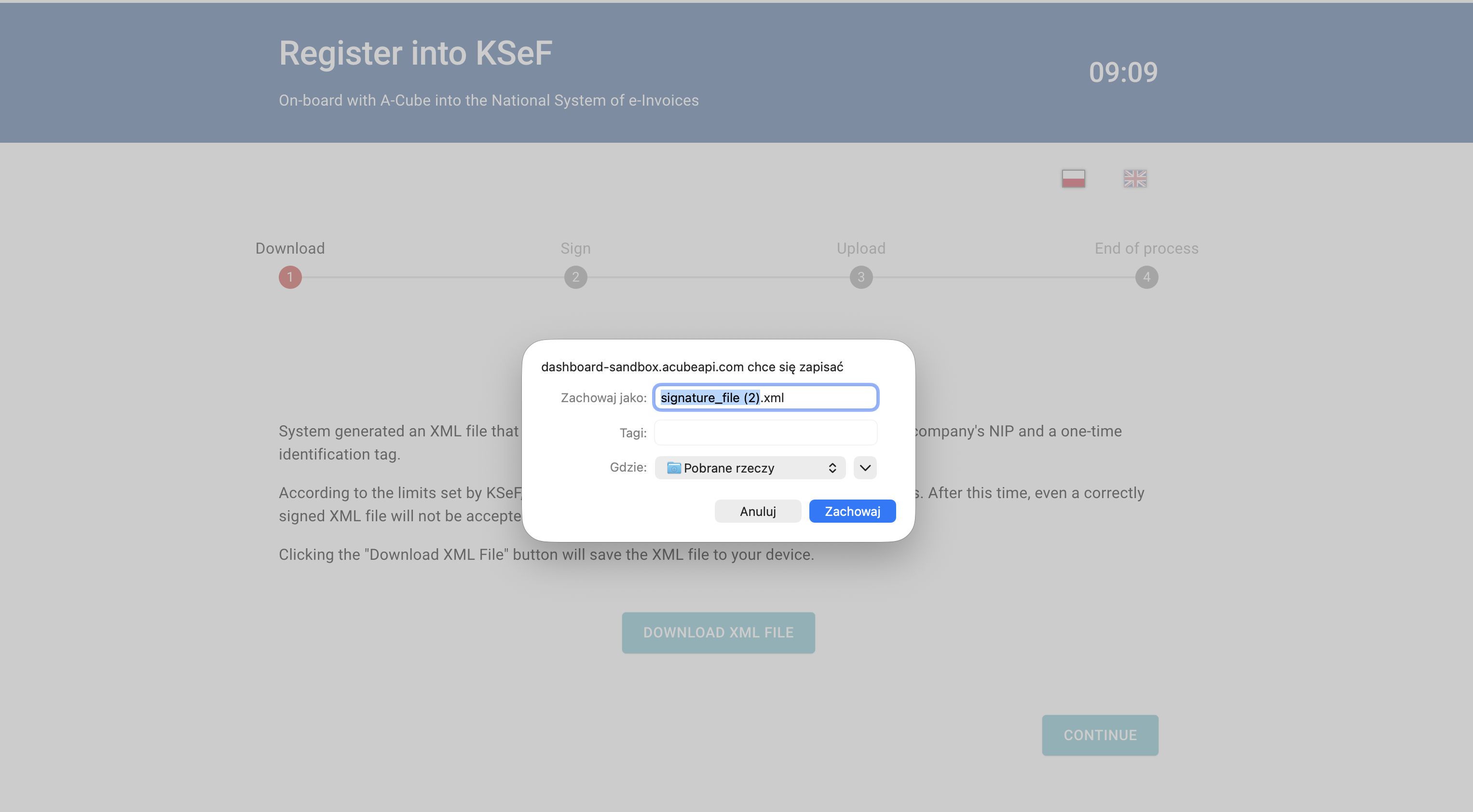
5. Open the podpis.gov.pl page to digitally sign documents
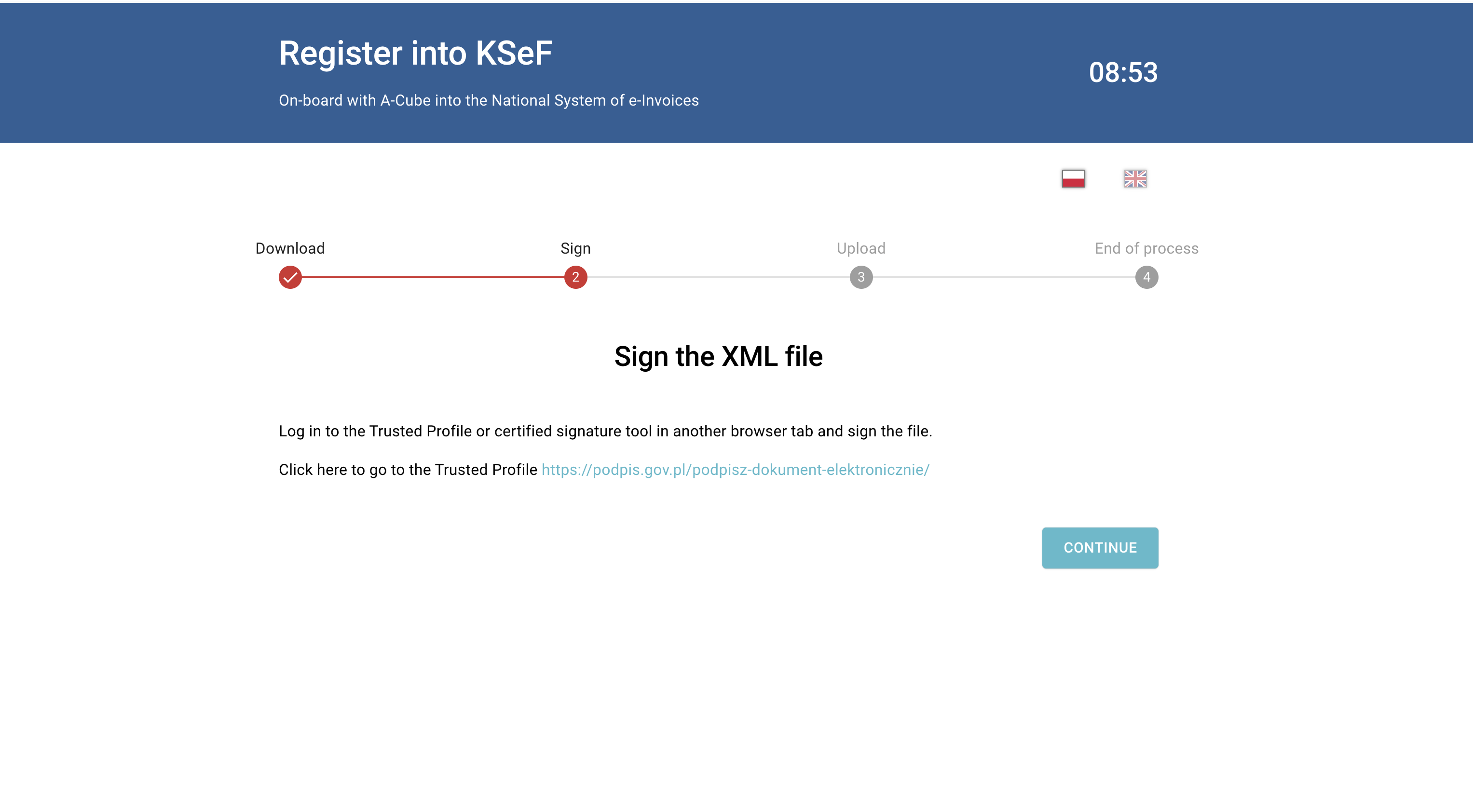
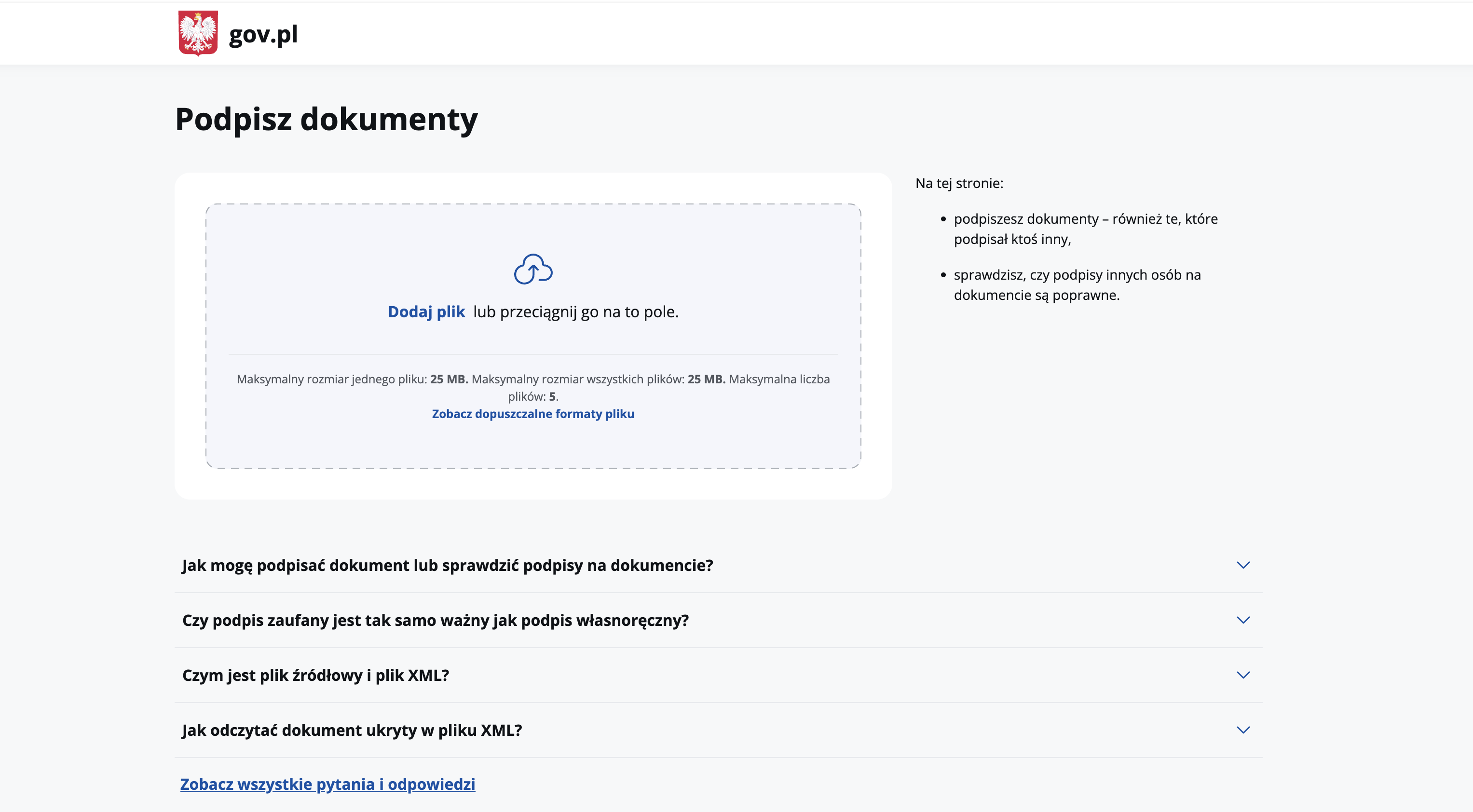
6. Click on Dodaj Plik (Add file) and upload the XML file you just downloaded
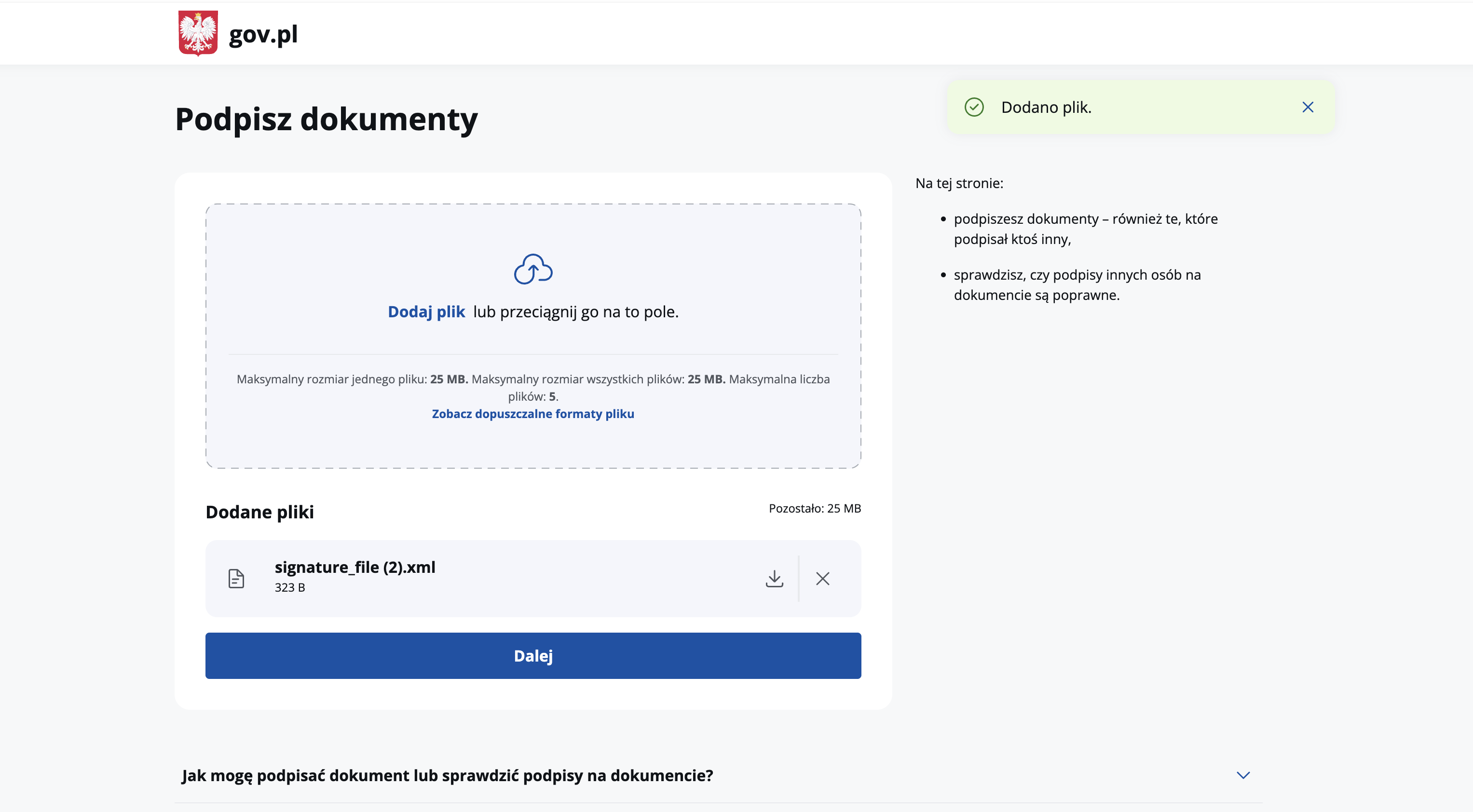
7. Verify the XML file appears in the uploaded files list, then click Dalej (Next).
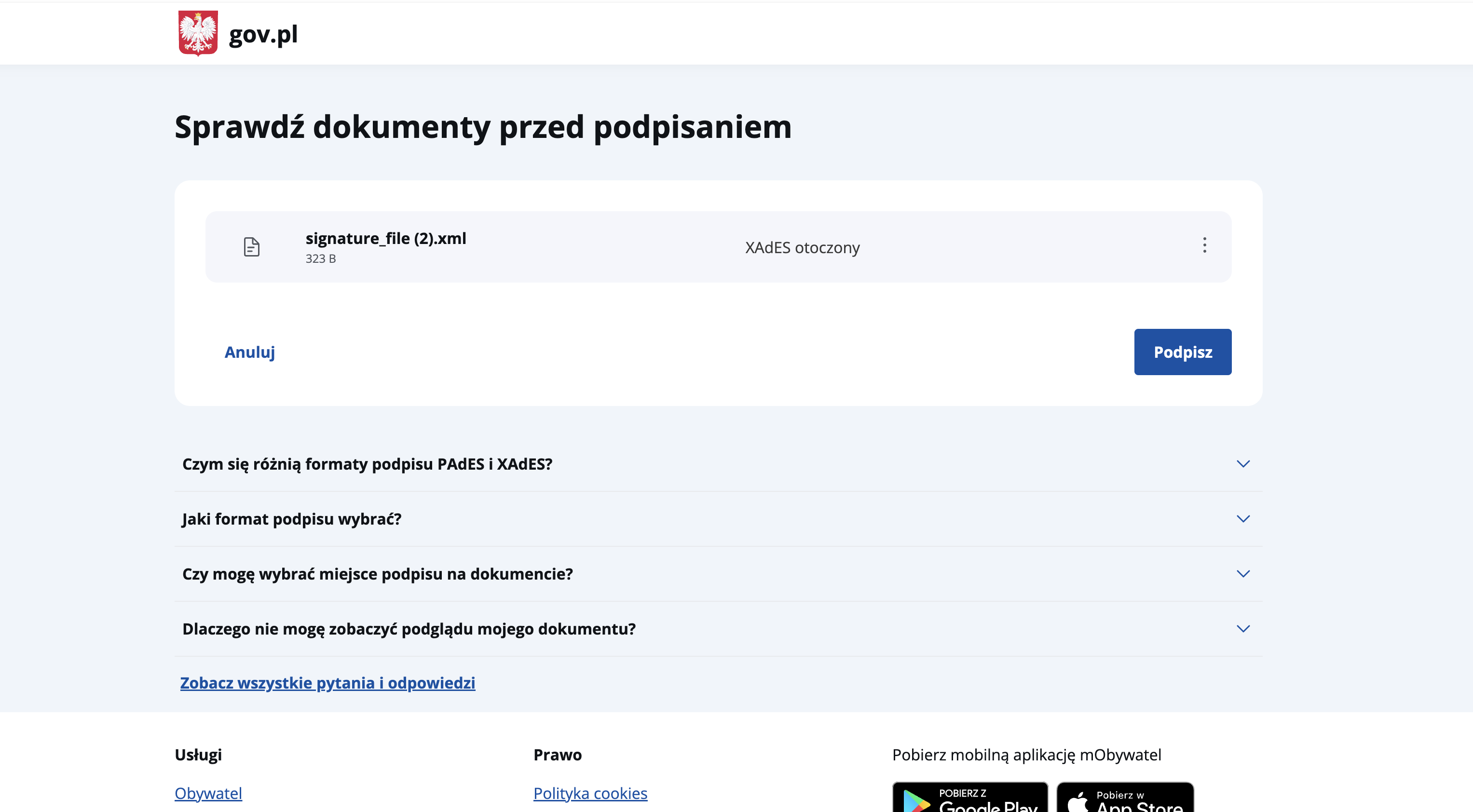
8. Review the file and click Podpisz (Sign) to start the signature process.
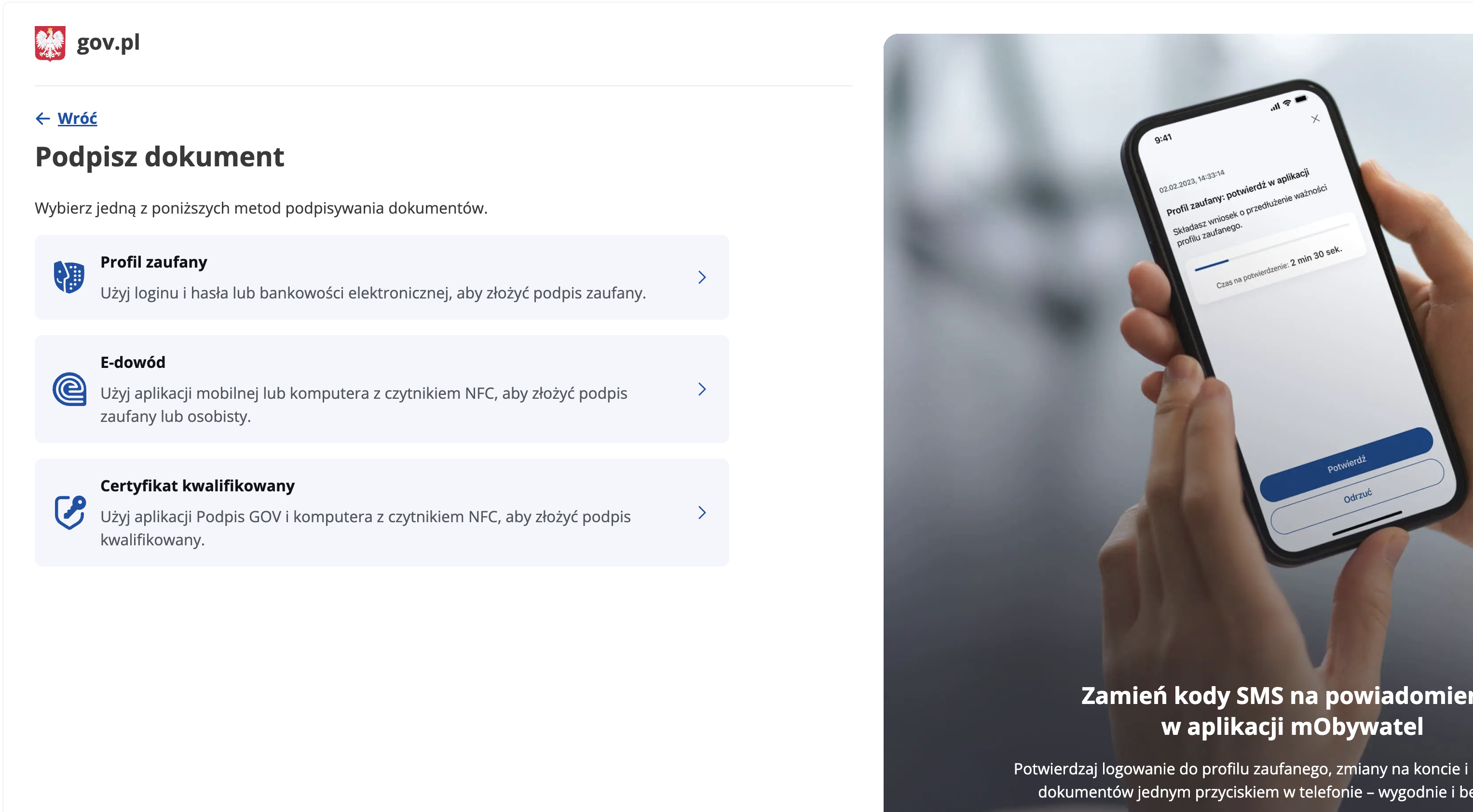
9. Choose your signing method (most commonly Trusted Profile / Profil zaufany) and complete authorization
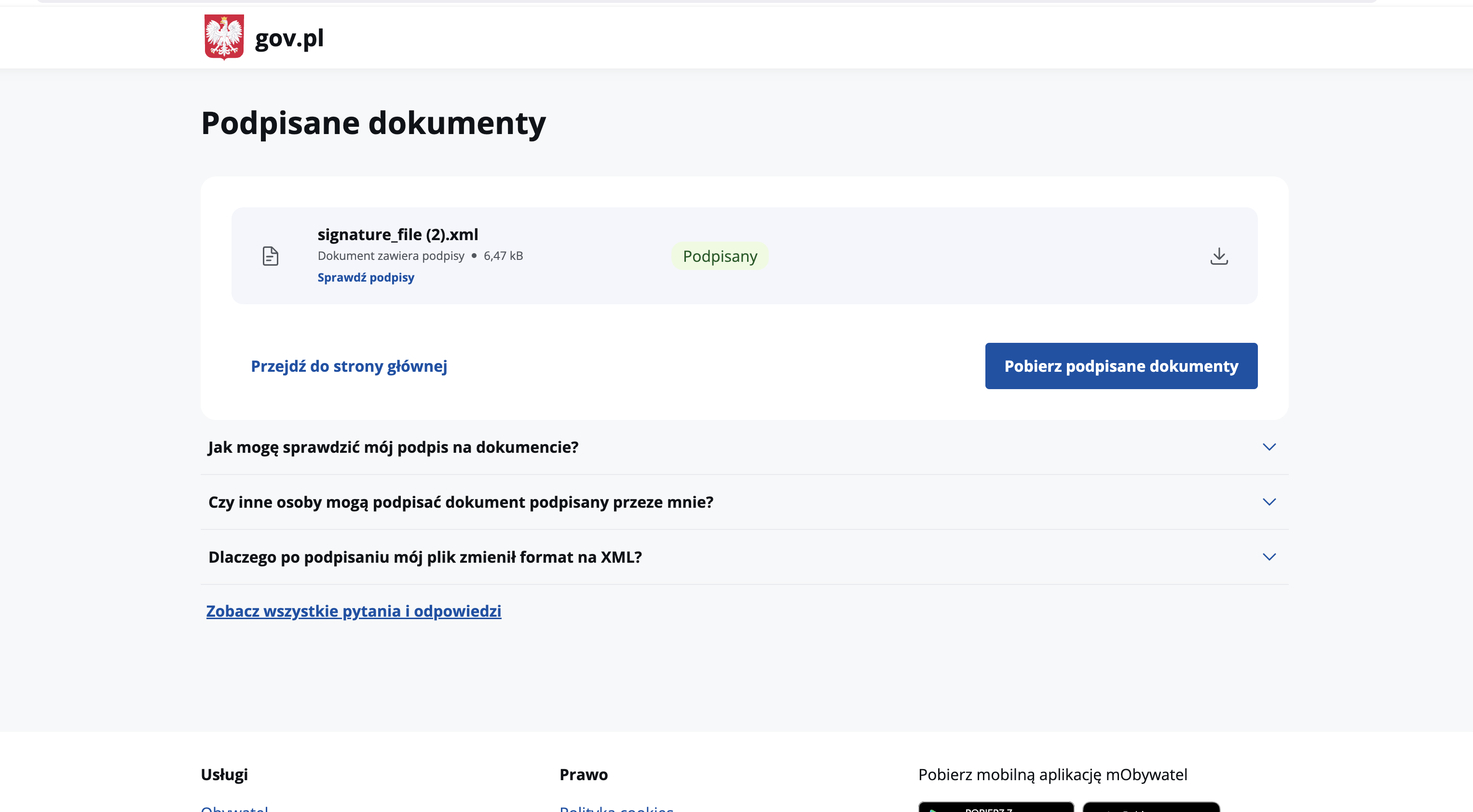
10. After successful signing, click Pobierz podpisane dokumenty (Download signed documents).
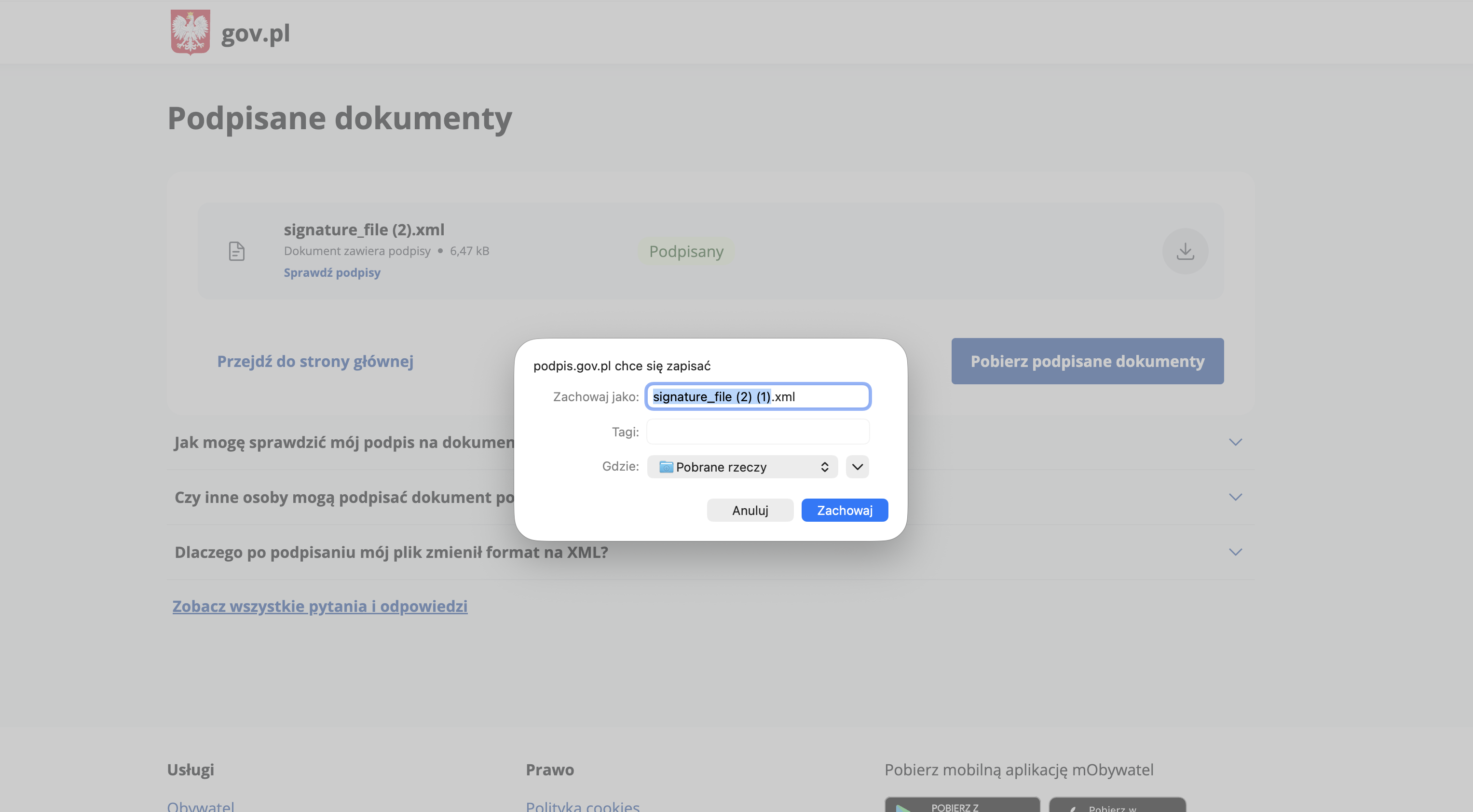
11. Save the signed XML file on your device
12. In the A-Cube dashboard, click Choose file and select the signed XML file
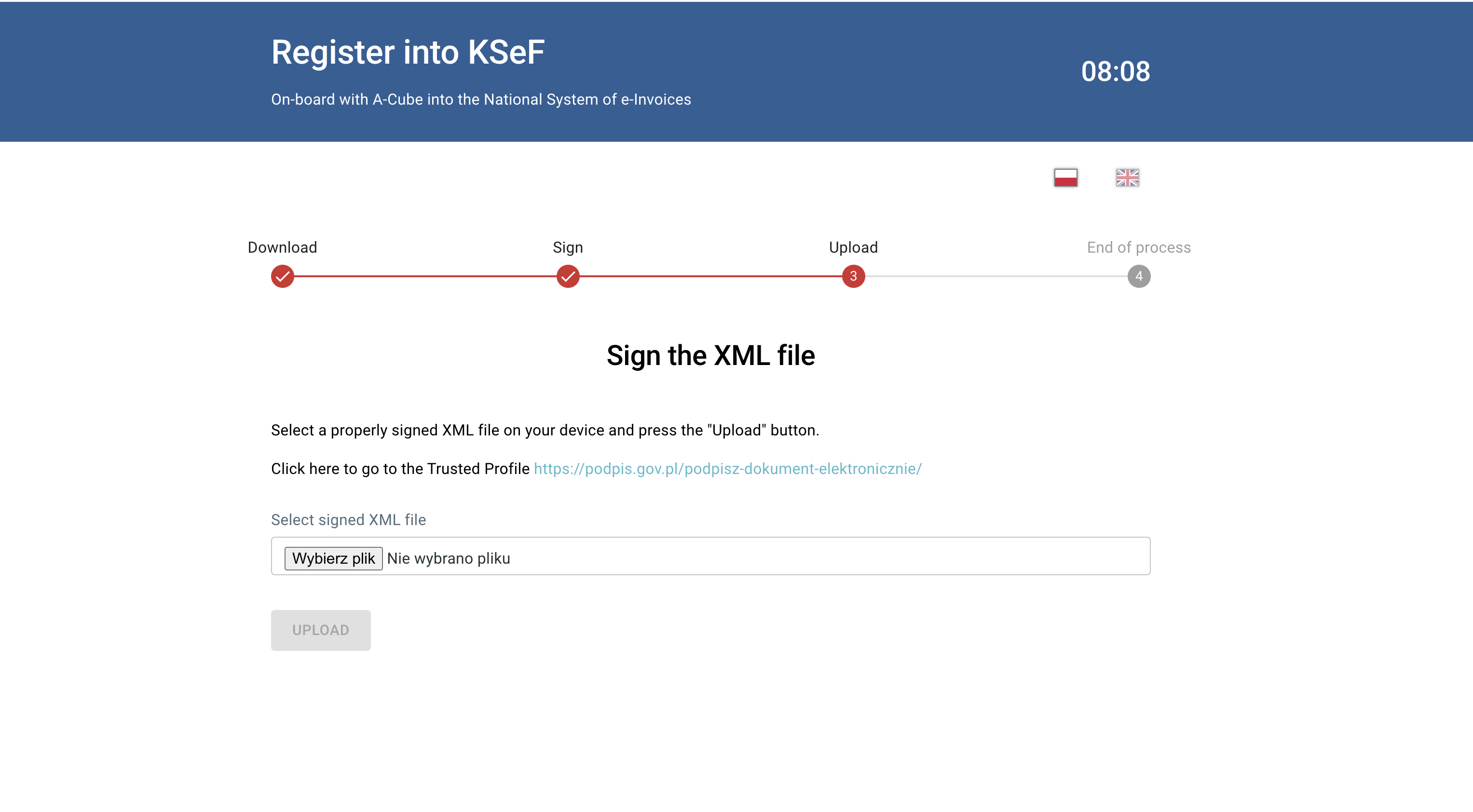
13. Confirm the selected file name appears in the upload field, then click Upload
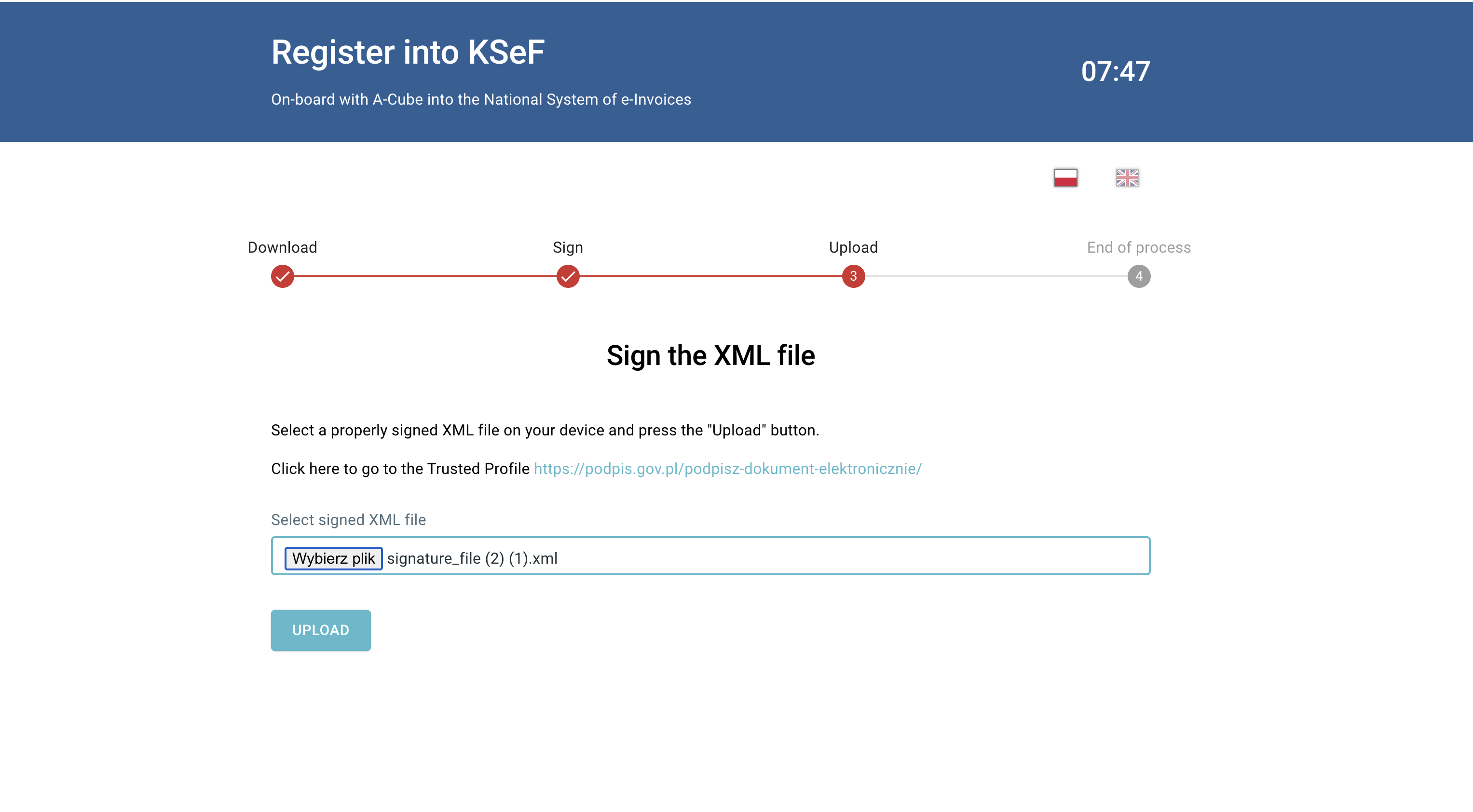
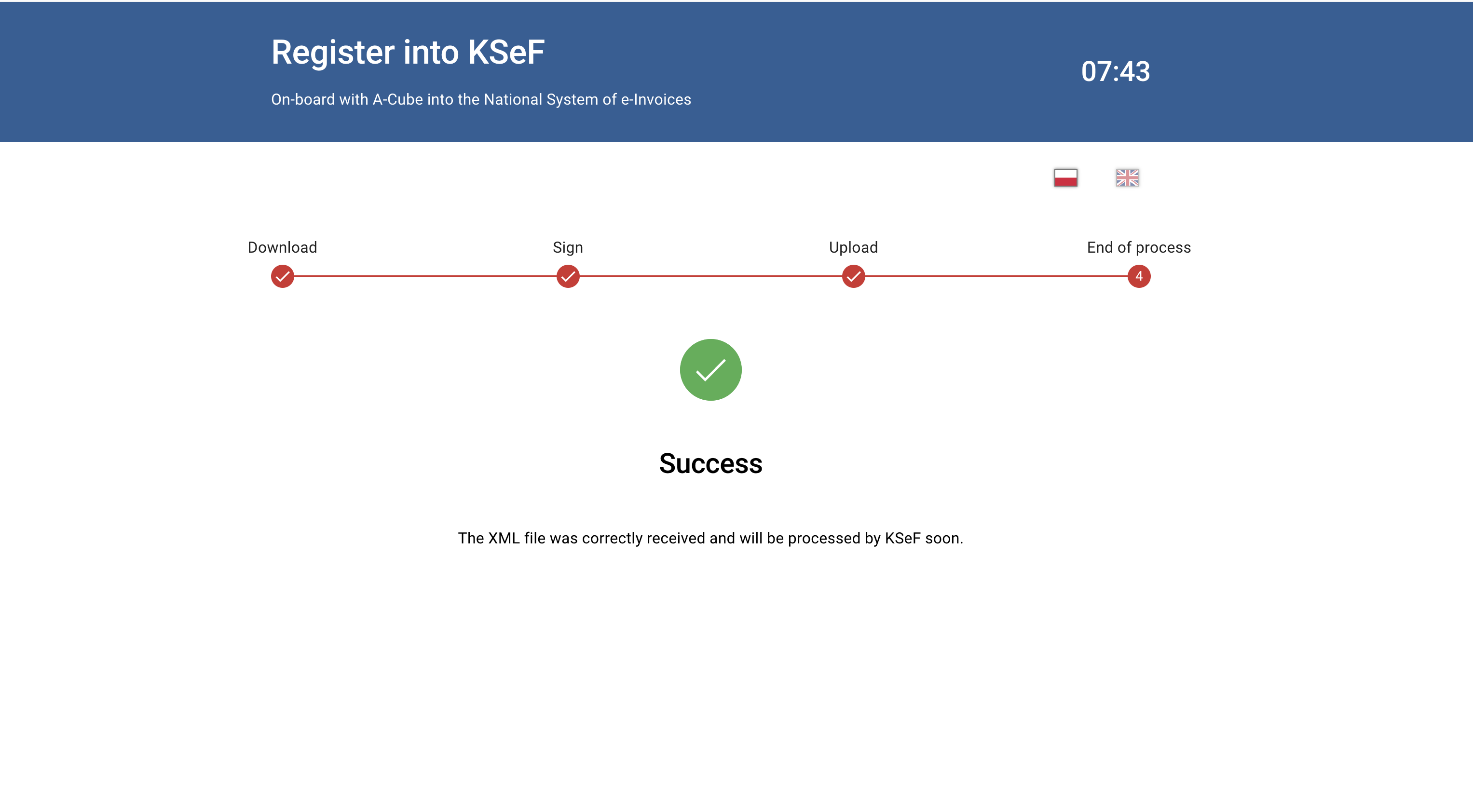
14. Wait for the confirmation screen
Success means A-Cube has received your signed XML and forwarded it for KSeF processing.