How Transfer works
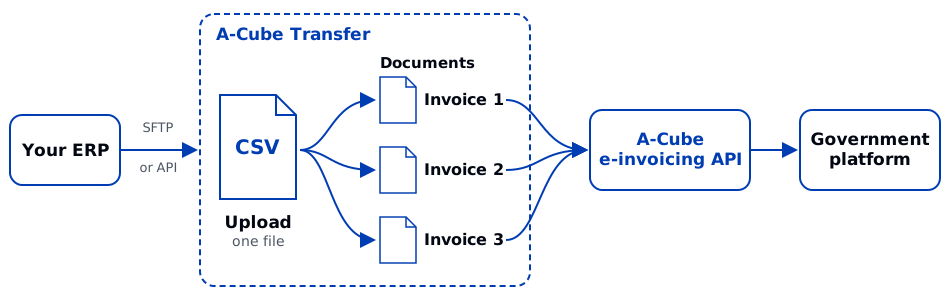
Transfer processes your uploaded files, converts them when needed, and sends the documents to the destination API. It records whether that API accepted or rejected each document.
Key terms
These terms appear throughout the Transfer docs and in the tracking API.
| Term | Meaning |
|---|---|
| Upload | One file you send to Transfer, through SFTP or the REST API. |
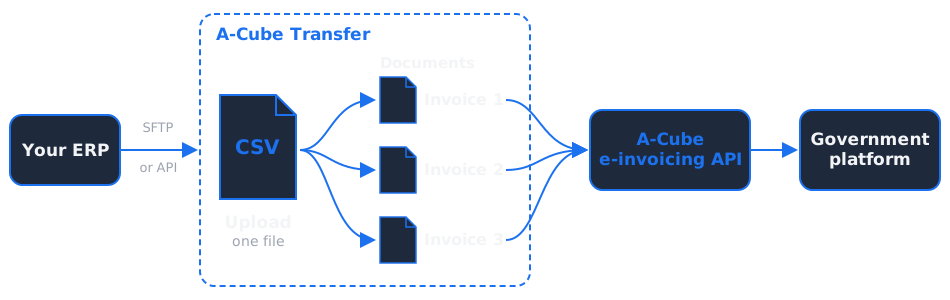
| Document | Each invoice Transfer sends to the destination, with its own status. A CSV with three invoices is one upload and three documents. |
| End-to-end ID | Your own identifier for an upload (e2e_id), stored exactly as you send it and searchable. |
The tracking API also lists the CSV file itself, so it can report problems found while reading it.
The flow
- Upload a file to your home directory through SFTP or the REST API.
- Transfer checks the file extension. Unsupported extensions and files in
ignored/orsupplier/directories are skipped. See Troubleshooting. - Transfer prepares the documents:
- CSV: converted into one document per invoice.
- Native XML in the destination format: sent as it is.
- ZIP or P7M: Transfer opens the archive and processes the files inside. The archive is not tracked as a document.
- UBL invoice: converted to the destination format, where A-Cube configured it (on request).
- Transfer sends each document to A-Cube's service for the destination.
- Transfer records the result on each document. Failed documents include violations. The upload status summarizes these results.
Feedback on every document
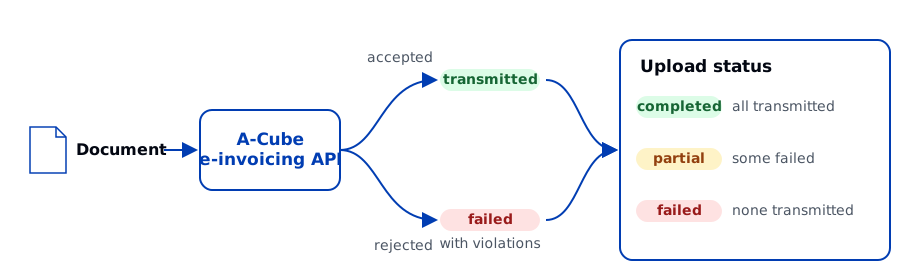
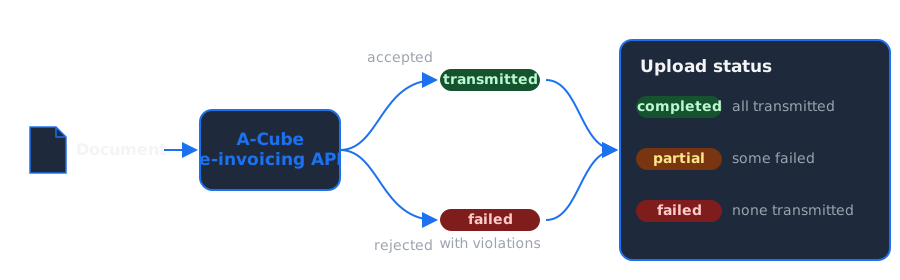
Each document ends as transmitted, when the A-Cube e-invoicing API accepts it, or failed, with violations that tell you what to fix. An invoice in a CSV can also fail before it is sent, when a value cannot be converted: its violations are reported on the CSV file.
Processing is asynchronous. An upload stays ingested until its documents reach a final status, then becomes completed, partial, or failed. Read the results through the tracking API, the dashboard, or an email digest and daily report (on request).
On request, Transfer webhooks notify your application of processing success or failure, with coverage confirmed during onboarding. For complete API examples, follow UBL JSON to KSeF or CSV to SdI.
From your ID to the destination API
Attach your own End-to-end ID when you upload through the REST API. You can then reach each document in A-Cube's e-invoicing API for that country, without storing any Transfer ID.
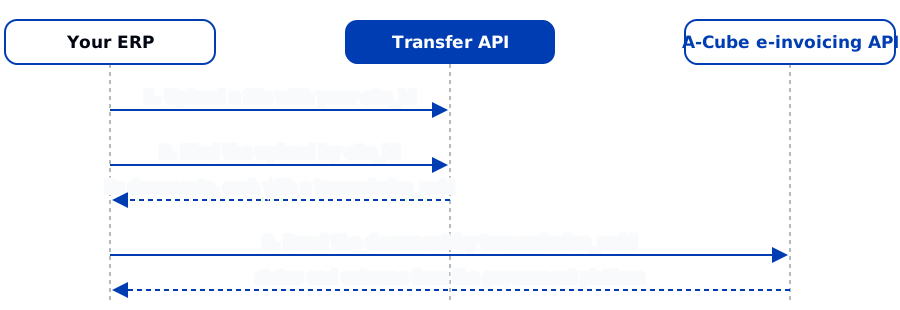
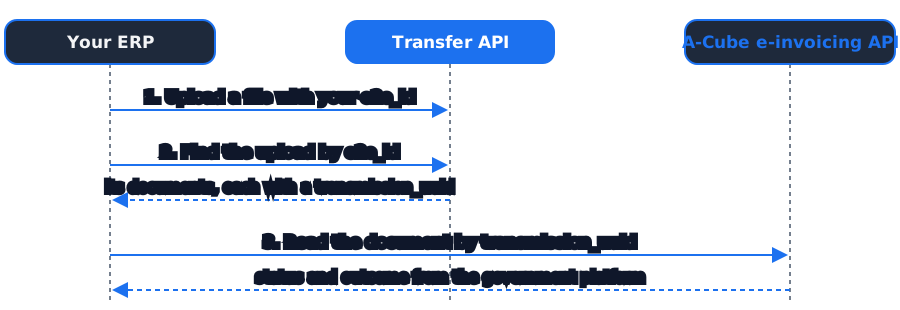
POST /uploadreturns the uploadidat once. Later,GET /uploads?e2e_id=<your-id>finds the same upload from your ID.GET /uploads/{id}/transfer-documentsreturns its documents.- On each document sent to the destination,
transmission_uuidis the document's identifier in the destination API. Use it there to read the document and its later outcome.
Each destination page names the API call. SFTP uploads have no End-to-end ID.
Where Transfer's job ends
transmitted means that A-Cube's service for the destination accepted the document. What happens next, such as a tax authority rejection, does not change the Transfer status.
See Statuses and where to see them for every status.
Environments
Use sandbox for testing and production for real documents. A-Cube grants access to each environment separately.
- SFTP uses one host for both environments. Add
-sandboxto your username to select sandbox. - The REST API has one base URL for each environment.
Start with Onboarding and access to activate Transfer for your account, then send your first file with the Quickstart SFTP. Connection details are in the SFTP and REST API guides.