Send & Receive Documents
This is standard setup of the E-Documents framework, the documentation can be found on: E-documents overview - Business Central | Microsoft Learn.
Outgoing Documents
The list of the E-Documents can be found over the search function in Business Central. From this list you can open outgoing E-Document:
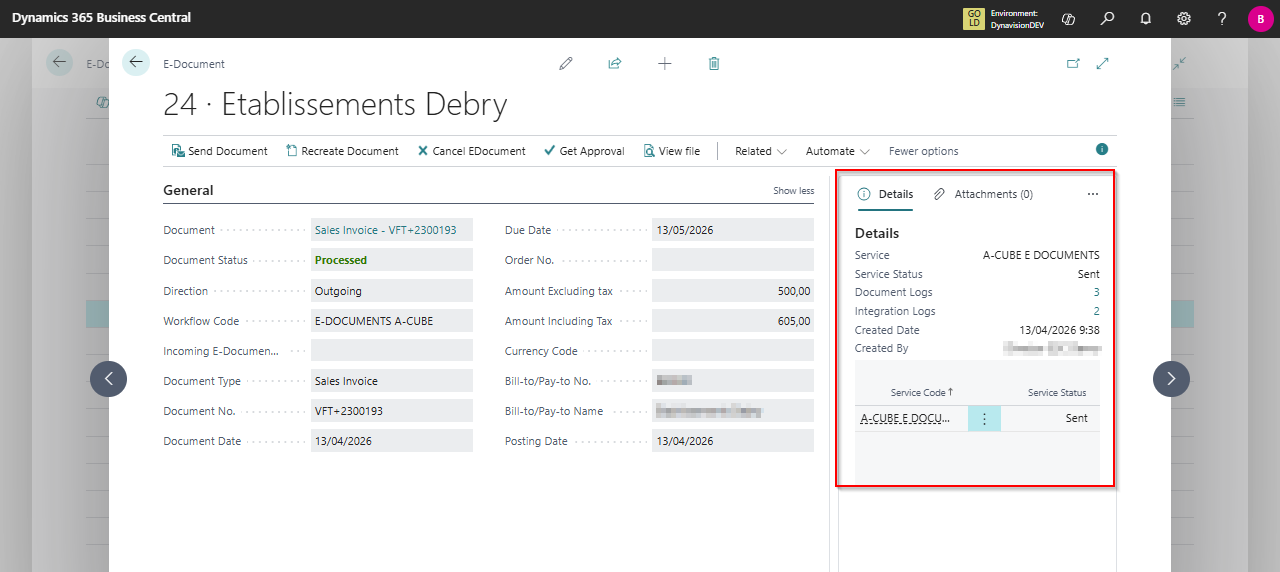
On this card you can see information about the document. In the Factbox on the right side, the used service is displayed (A-Cube E-Document) with the status. The document Logs Flowfield is clickable to check the communication logs:
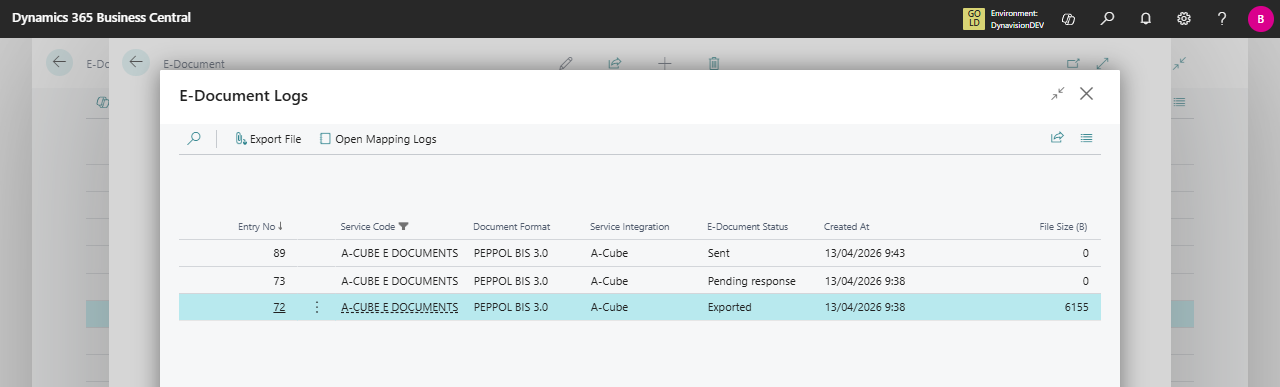
In the example you see 3 logs, sorted descending by default. So the last line is the oldest log entry, the first is the last log entry:
- Entry 72: exporting (sending) the PEPPOL file. The file size of the PEPPOL file is shown for the entry. Over the action Export File in the ribbon, you can download this file locally.
- Entry 73: pending response, the validation was positive, and PEPPOL is on the network. This status should follow immediately after sending.
- Entry 89: Sent, this is the confirmation the PEPPOL was sent. This confirmation can take a few minutes depending on the processing in the PEPPOL network.
Incoming Documents
The list of the E-Documents can be found over the search function in Business Central. From this list you can open the incoming E-Document:
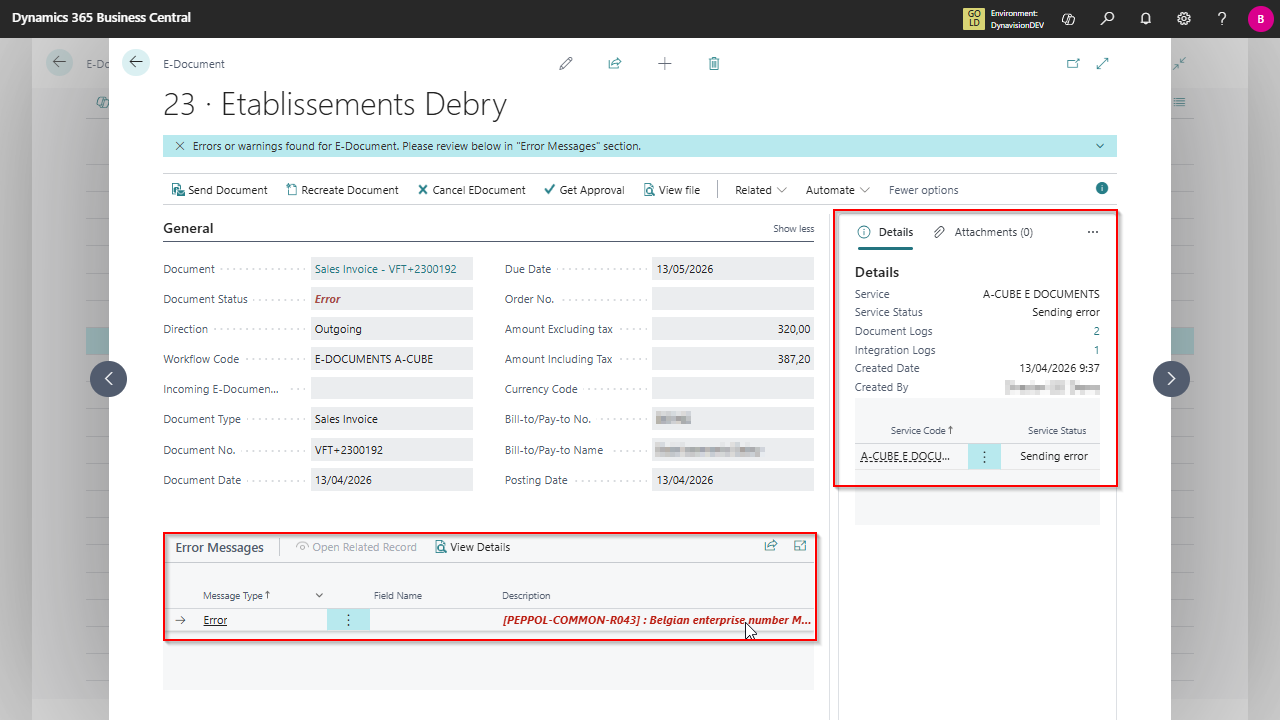
On this card you can see information about the document. In the Factbox on the right side, the used service is displayed (A-Cube E-Document) with the status. In the Example the Document Status is ERROR, this means the incoming document could not be converted to a Purchase Invoice. In Business Central. The user can see the error information in the lower part of the page, in this example due to an incorrect Belgian Enterprise Number of the Vendor. The file was received through the A-Cube Platform, so the error is caused by setup in Business Central. This is standard setup of the E-Documents flow in Business Central, the documentation can be found on: E-documents overview - Business Central | Microsoft Learn.
Once all configuration in Business Central is corrected, the Purchase Document will be created, and the E-Documents Card will show this:
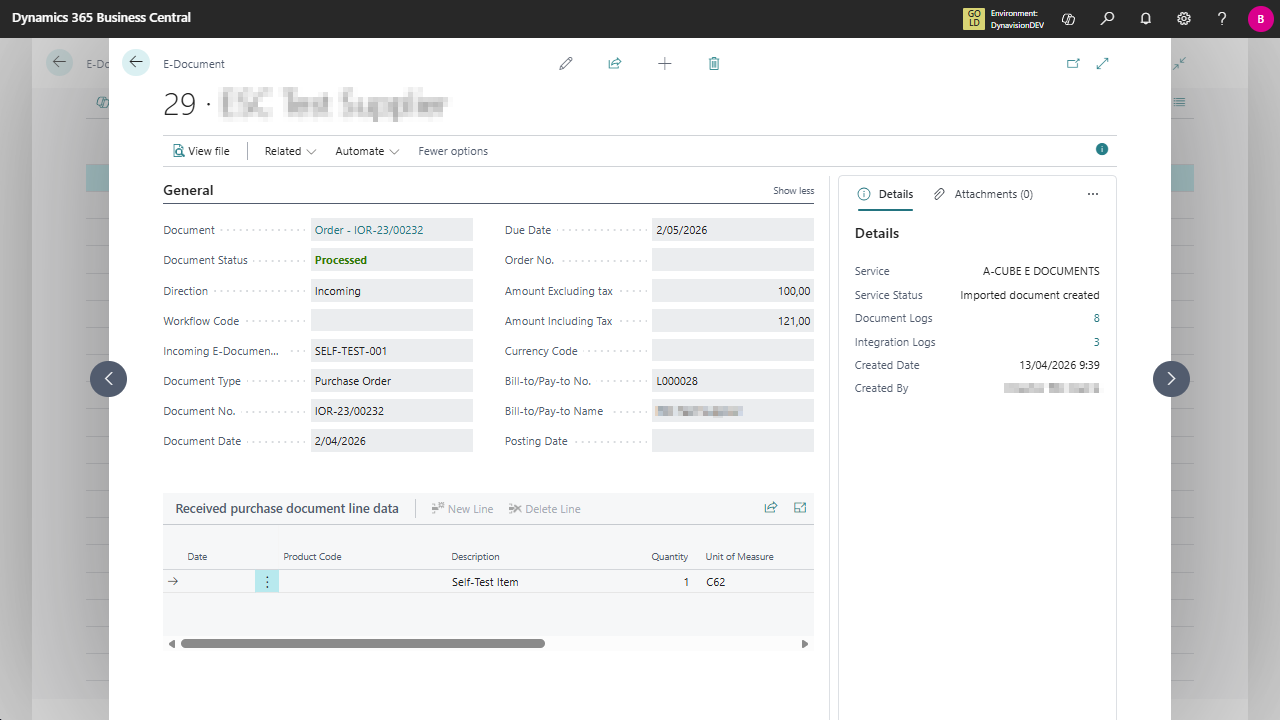
Now the Document Status is Processed. The error messages are no longer shown, and the line data is displayed. From this card you can navigate to the created Purchase Invoice in Business Central.